
August 16, 2026
How to Rotate a PDF (and Make It Stick)
Rotate one page, a whole PDF, or twenty files at once — and save it so the person you send it to sees it upright too. Nothing is re-encoded, nothing uploaded.
Somebody scanned a document with the sheet the wrong way round, and now every page arrives lying on its side. You turn your head, read it, and think about how to fix it — except the obvious fix, the rotate button in your PDF viewer, usually only rotates it for you. Send that same file on and the recipient tilts their head too.
Rotating a PDF properly means writing the new orientation into the file itself. That's what the MyTools PDF rotator does, for one page or for twenty documents in a single pass. Here's the workflow, then the part most guides skip: why rotation costs you nothing, and why the thing you tried first didn't work.
Fixing a sideways scan
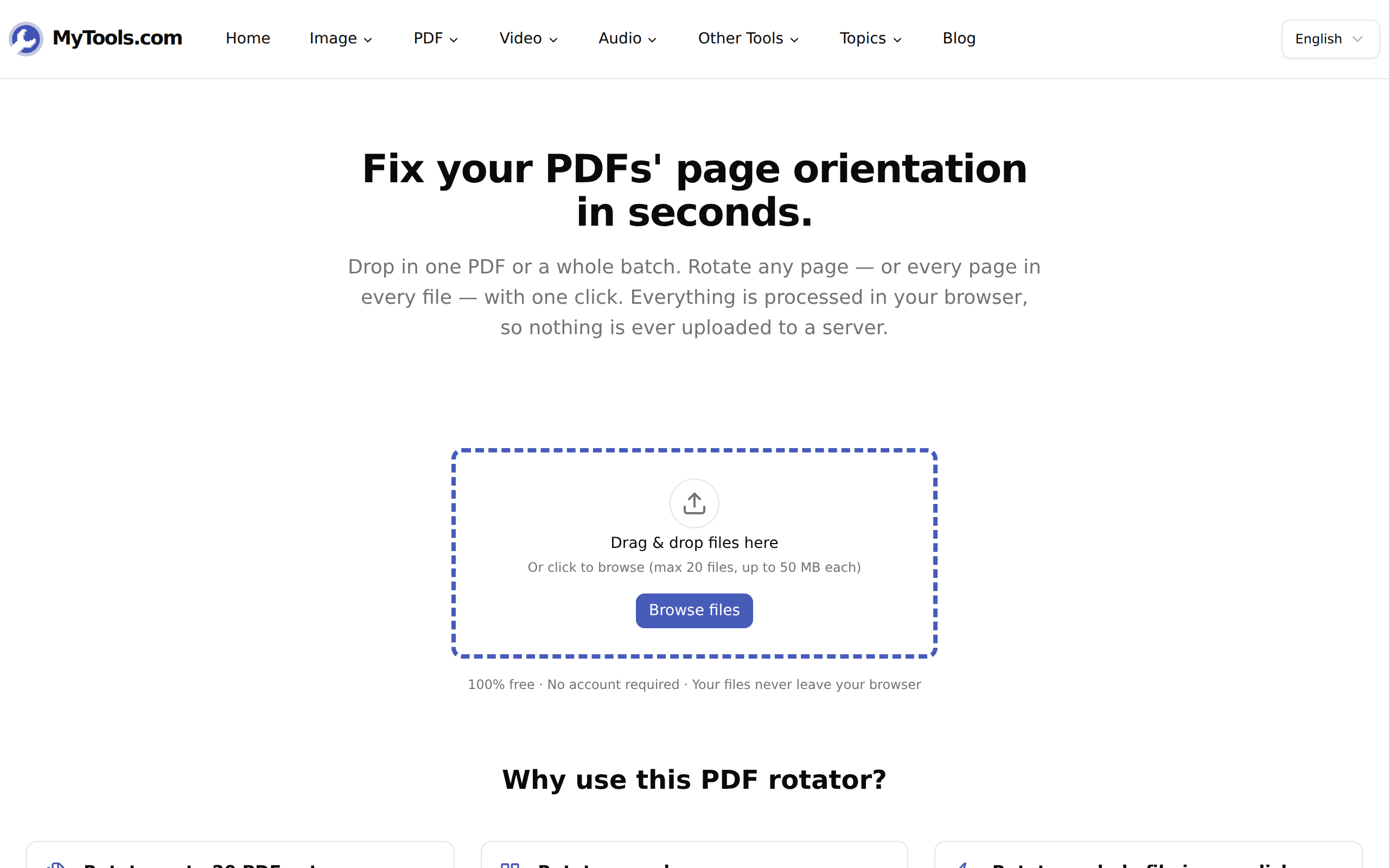
1. Drop the file in
The page opens on a drop zone that takes PDFs only — up to 50 MB each, up to 20 at once. There's no email gate and no queue position to wait through, because the file is handed to the page rather than to a server.
2. Turn the pages you need
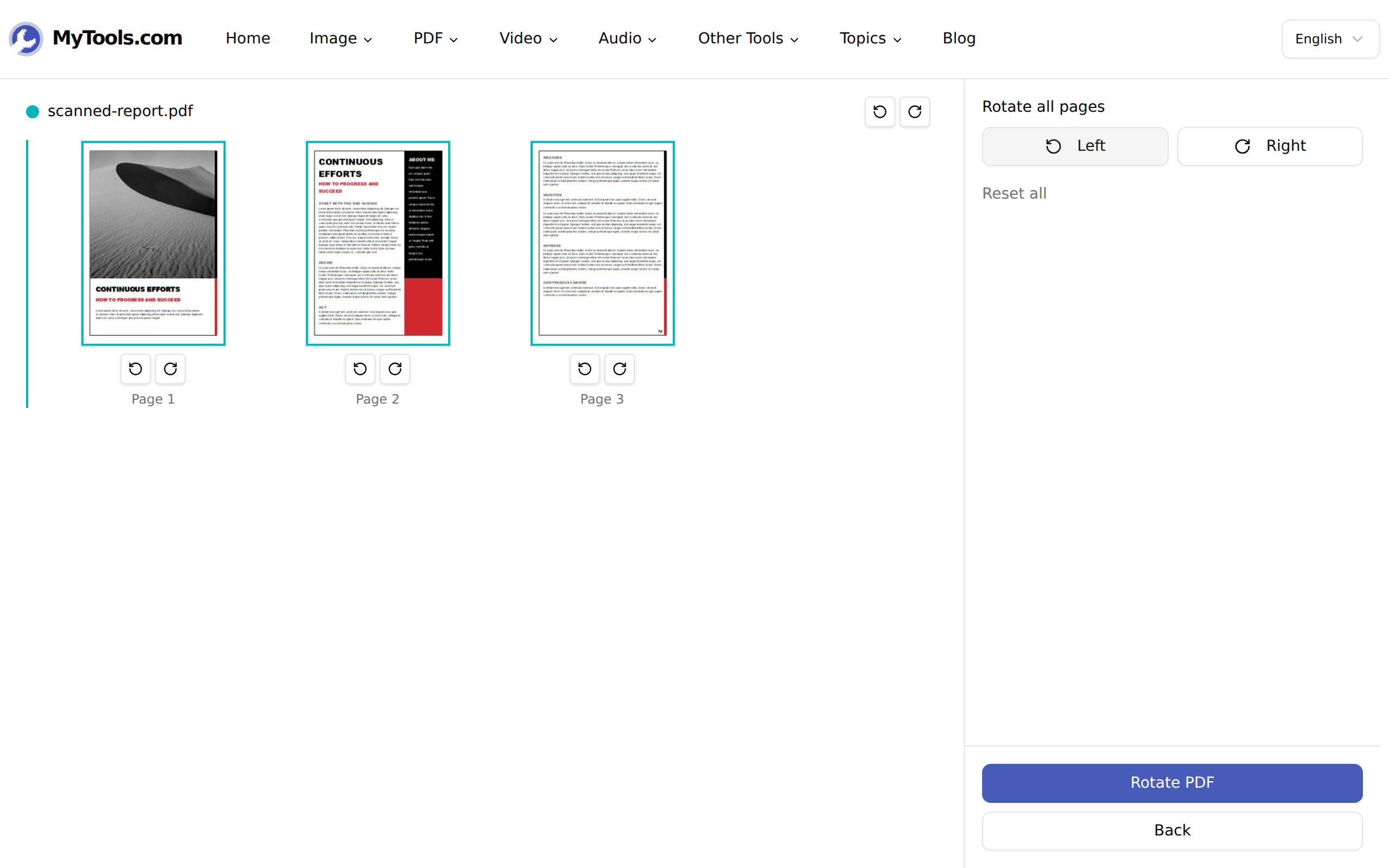
Every page is rendered as a thumbnail with its own pair of rotate buttons underneath — counter-clockwise on the left, clockwise on the right. Each click turns that page 90° and the thumbnail updates on the spot, so you're never guessing at the result.
Three scopes, depending on how broken the file is:
- One page. The buttons under any thumbnail. Use these when a scanner fed a single sheet in sideways.
- One whole file. The small pair of buttons in the file's header row, next to its name. Every page in that document turns together.
- Everything. Left and Right in the right-hand panel, which sweep across every page of every file you dropped in.
The panel keeps a running count — "3 pages rotated" — and a Reset all link appears as soon as anything has moved, which puts every page back to how it arrived.
3. Save it
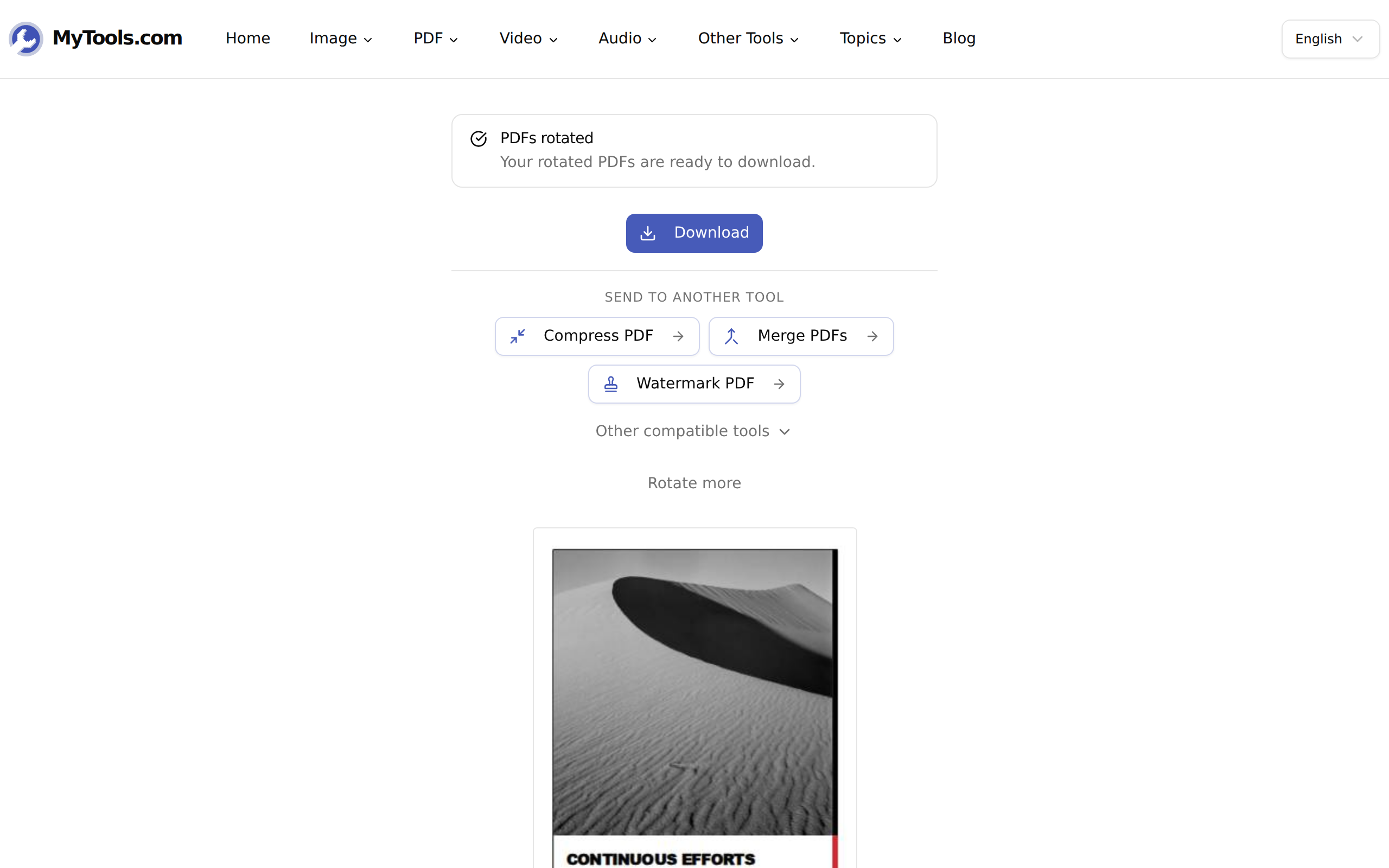
Click Rotate PDF and the corrected file comes back as yourfile-rotated.pdf, leaving the original untouched. Drop in several and the button counts them — "Rotate 6 PDFs" — with the results arriving together as rotated-pdfs.zip.
Rotation is a number, not a re-render
This is the part worth knowing, because it's the reason rotating a PDF is safe in a way that most PDF operations aren't.
Every page in a PDF carries a /Rotate entry in its page dictionary: an integer telling any viewer how far to turn the page before drawing it. The spec allows multiples of 90 and nothing else — which is why there's no "rotate 5° to straighten this" control anywhere in the tool. Rotating a page changes that one number. The text objects, the embedded fonts, the scanned images: none of them are touched, decoded, or written back out.
The practical consequences:
- No quality loss, at any angle. Nothing is resampled, so a scan rotated four times is byte-for-byte as sharp as the original.
- File size barely moves. A 12 MB scan comes back at roughly 12 MB. If you were hoping rotation would shrink it, that's a job for the compressor instead.
- Text stays text. Selectable, searchable, and still readable by whatever reads it downstream. Rotation never flattens a page to an image.
- Existing rotation is respected. If a page already carried a 90° flag, one click clockwise takes it to 180 rather than resetting it — the tool adds to what's there, so the preview always matches reality.
Why your viewer's rotate button didn't fix it
Most PDF viewers — Preview on macOS, Chrome's built-in reader, plenty of mobile apps — put a rotate control in the toolbar that changes only the view. It's a display setting, sometimes remembered for you and only for that one machine. The /Rotate value in the file never changes, so the moment you email it, the recipient opens the file exactly as it was.
The tell is that the file's modification date never changed. If you rotated and didn't save, you didn't rotate the document; you rotated your window onto it.
A related mix-up is worth naming: rotating is not deskewing. A scan that sits at a lazy 3° angle because the paper shifted in the feeder isn't a rotation problem, and no number of 90° turns will square it up. That needs a deskew pass in scanning software, which does re-render the page. Rotation handles the four right angles and nothing in between — which is also why it can promise not to touch your pixels.
When it doesn't go smoothly
"These PDFs are password-protected." An encrypted file can't be opened for editing until the password comes off. Run it through the PDF unlocker first, then bring it back. A mixed batch doesn't fail wholesale — the locked files are skipped and everything else still comes back rotated, so check the count in the download before assuming you got all of them.
The file is over 50 MB. Long scans are the usual culprit. Cut it into parts with the PDF splitter, rotate the parts, and reassemble. Worth checking first whether it's genuinely too big or just slow: a 300-page document has 300 thumbnails to render before the grid appears, and on a modest laptop that's a real wait, not a hang.
Half the pages are portrait and half are landscape. Don't reach for the global Left and Right buttons — they'll fix one half and break the other. Go page by page, or rotate everything one way and then correct the minority back. The running count in the panel tells you how many pages you've actually moved, which is the quickest way to catch an overshoot before you save.
A page looks right but prints sideways. Check the print dialog rather than the file. "Fit to page" and automatic orientation settings will happily override a correct /Rotate value.
Rotating a PDF is the rare edit that costs nothing: no re-encoding, no quality trade-off, no decision to regret. The only thing that matters is saving the result rather than tilting your monitor.