
19 avril 2026
How to Merge PDF Files Without Acrobat
Combine up to 20 PDFs into one clean document. Reorder by drag-and-drop, watch the page count update live, save when you're done.
You have a contract in three pieces, a report split across four exports, or a stack of scanned pages that belong in one file. Acrobat is the wrong tool for a one-off job like this. The MyTools PDF Merger takes up to 20 files, lets you drag them into the order you want, and outputs one document — without asking for an email. Below: the workflow, plus what survives a merge (bookmarks, form fields, page sizes) and what doesn't.
What You'll Need
- A modern browser (Chrome, Firefox, Safari, Edge — desktop or mobile)
- Between 2 and 20 PDF files, each under 50 MB
- The order you want them in (you can rearrange before merging)
When You Actually Need to Merge
A merger isn't always the right tool. Quick check before you start:
- Multi-part contracts or NDAs — when a client sends "Part 1", "Part 2", "Schedule A" as separate PDFs and you need to file them as one document. Classic merge use case.
- Scan batches — when your scanner outputs one PDF per page or per sheet because of a feeder limit. Merge to assemble the whole document.
- Reports stitched from multiple sources — exports from analytics, screenshots from a deck, an appendix from a different tool. Merge once, share a single link.
- Submission packages — university applications, grant applications, visa paperwork. The reviewer wants one PDF; you have four.
When not to merge:
- You only need a couple of pages from each source. Use Split PDF on each input first to extract just the pages you want, then merge.
- The pages need to be reordered within a single file. The merger reorders files, not pages. For per-page reordering, split the source first, then merge in the new order.
What Survives a Merge
The merger preserves the visual content of each input exactly — text stays selectable, images stay sharp, fonts stay embedded. A few finer points are worth knowing about, though:
- Page sizes — preserved per source. If you merge an A4 letter with a US Letter contract, the output will alternate between the two sizes. Most readers handle this gracefully, but some print drivers will scale unexpectedly. If you need a uniform size, normalize the inputs first (export them all to the same paper size from their source app).
- Page orientation — preserved per source. A landscape page in input #2 will still be landscape in the output. If a source file has pages that were already sideways, the merger doesn't fix them — handle that in the source PDF first.
- Bookmarks (the table-of-contents pane in Acrobat) — generally lost. The merger doesn't carry forward bookmarks from each input, so the merged file has no TOC pane. If bookmarks matter, you'll need a desktop tool.
- Form fields — preserved if each input file's fields have unique names. If two inputs both have a field named "Signature", they'll collide in the output. Either rename the fields in the source apps, or flatten the forms before merging (most PDF viewers can do this with "Print to PDF").
- Encryption / passwords — not preserved. Inputs must be unencrypted; the output is unencrypted. If you need a password on the merged file, encrypt it as a separate step afterward.
- Digital signatures — broken by the merge. A signed PDF cryptographically commits to its exact byte content; merging it into another document changes the byte content and invalidates the signature.
How It Works
Step 1: Open the tool
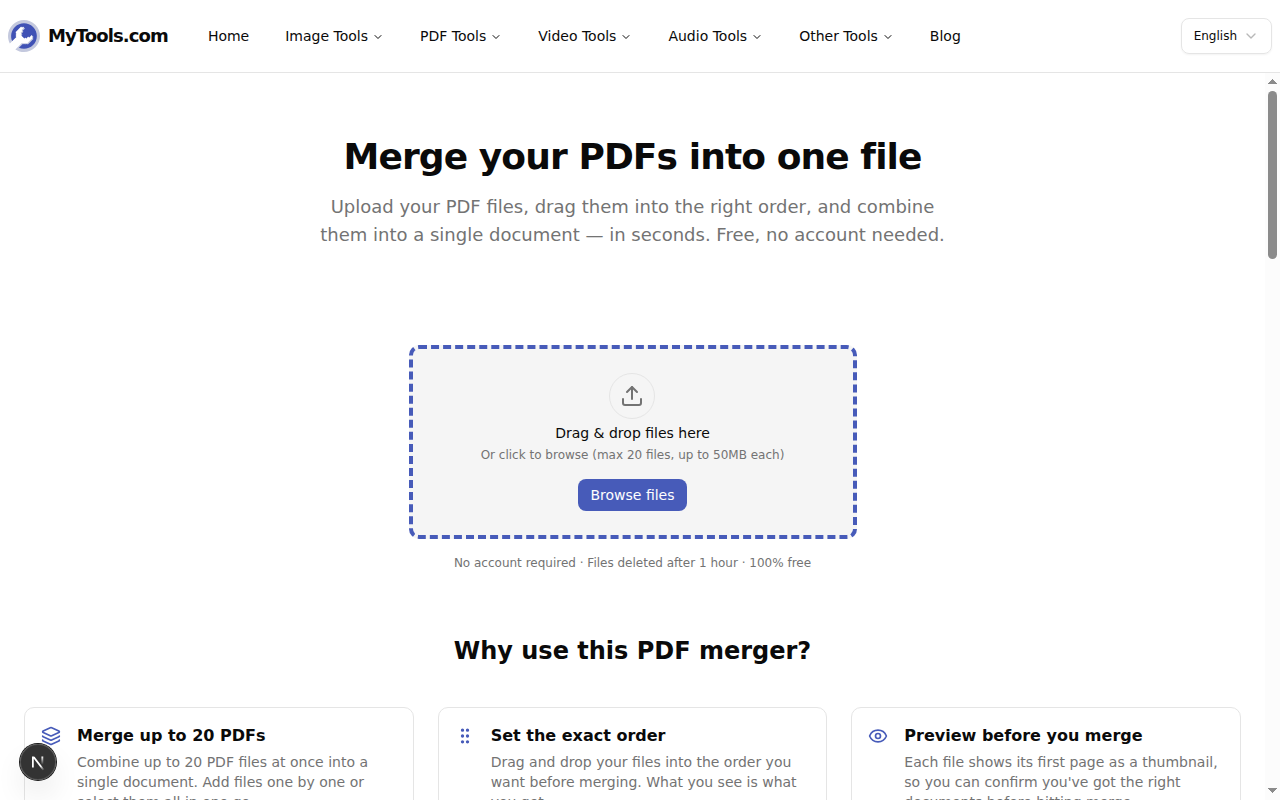
Open MyTools — PDF Merger — there's no login, nothing to install, just the page itself.
Step 2: Upload your PDFs
Drag your PDF files onto the upload area, or click Browse files to pick them from your device. Up to 20 files at once. Anything that isn't a PDF or is over 50 MB is rejected with a clear message.
Step 3: Set the order
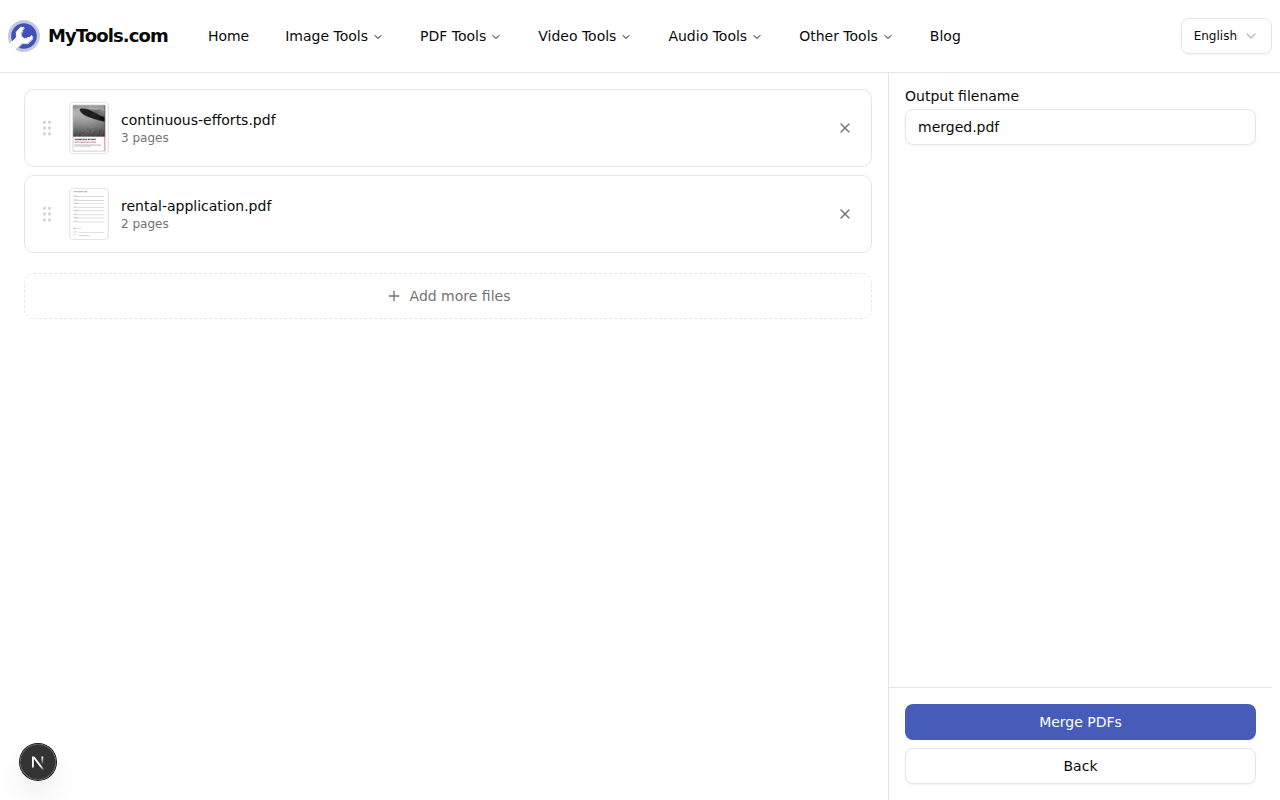
Each PDF appears as a card with its filename, page count, and first-page thumbnail. Drag the cards into the order you want — top-to-bottom in the list becomes first-to-last in the merged file. On mobile (and as a fallback on desktop), use the up/down arrow buttons.
If page three of the combined PDF should be the cover letter, make sure the cover letter is third in the list. You can also rename the output file before merging; the default is merged.pdf.
Step 4: Merge and download
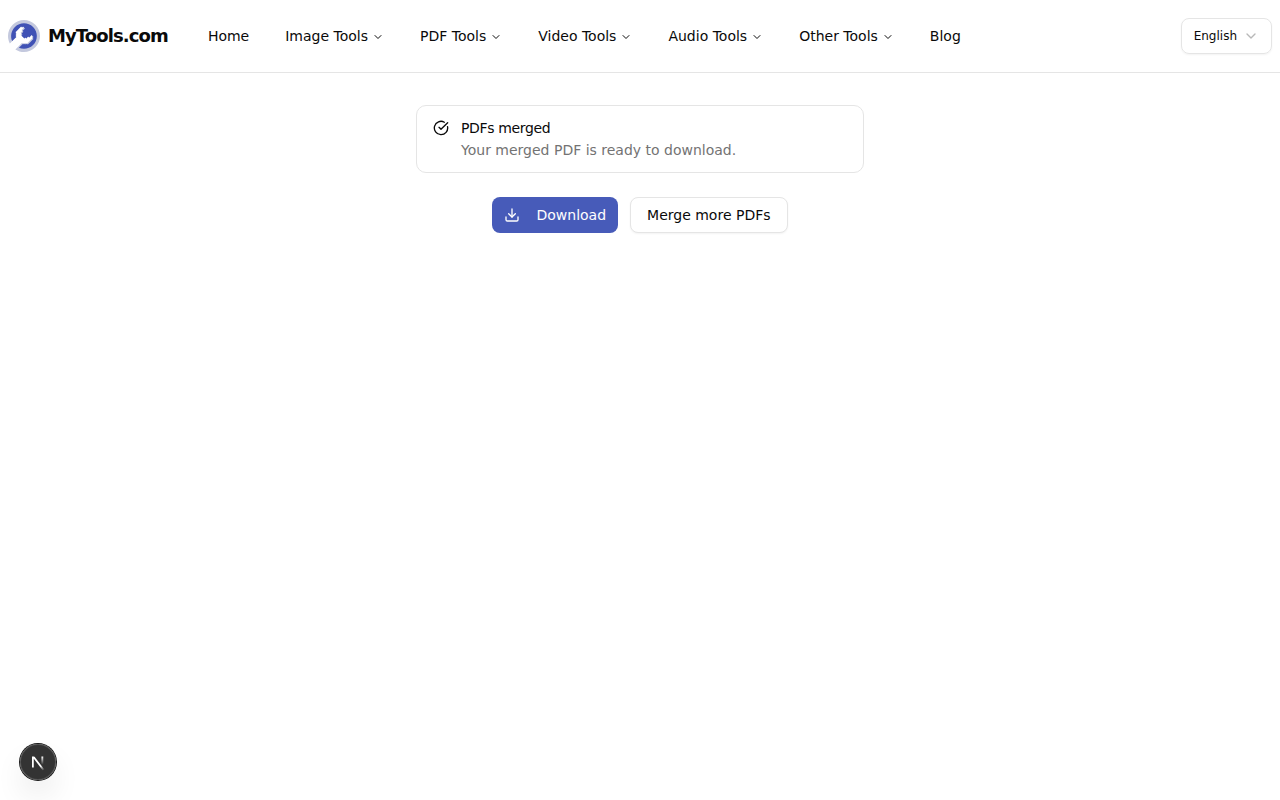
Click Merge PDFs. Most batches finish in a few seconds. The download button activates when it's done.
Tips & Troubleshooting
A few situations that come up:
One of your files is over 50 MB. Each individual PDF has to stay under the cap. If one is too big, run it through the PDF compressor first — scanned PDFs typically lose 60–80% with no visible quality loss — then come back and merge.
Your PDF is password-protected. Inputs must be unlocked. Remove the password in your usual PDF viewer first, save a copy, then merge the unprotected version.
You need to merge more than 20 files. Merge the first 20, then merge that result with the next batch. The merger treats a previously merged file the same as any other input.
Done
What takes Acrobat ten clicks and a paid license takes three actions here: drop the files, sort them, save. Nothing leaves the laptop, so there's nothing on a server to delete later. Try the PDF Merger for free →