
June 11, 2026
How to Flip a Video (Horizontally or Vertically)
Flip a video horizontally or vertically with a live preview — fix mirrored selfie text or stop B-roll from looping, with no watermark and no sign-up.
You recorded something on your phone's front camera, played it back, and the writing is backwards. The label on the bottle, the words on your whiteboard, the logo on your shirt — all reversed, because selfie cameras mirror what they capture. The clip is otherwise perfect, and you do not want to film it again. Flipping the video horizontally fixes it in one click, and this guide walks through exactly how to flip a video without installing anything or paying for an editor.
Flip a Video in Three Steps
Step 1: Open the flip tool
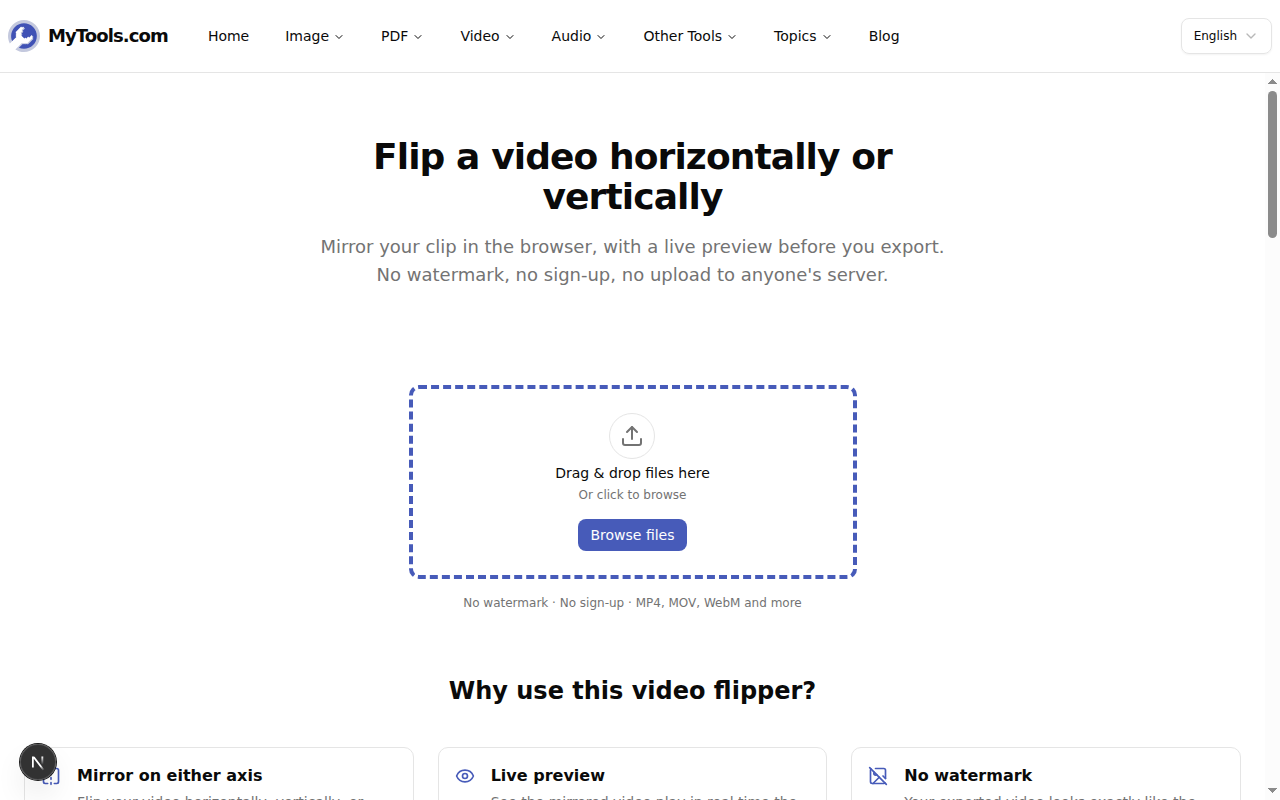
Pull up the MyTools video flipper in any modern browser — Chrome, Safari, Firefox, or the browser on your phone. The page is just a drop zone and a heading; there is no login wall and no upload meter, because nothing leaves your device.
Step 2: Pick a flip direction
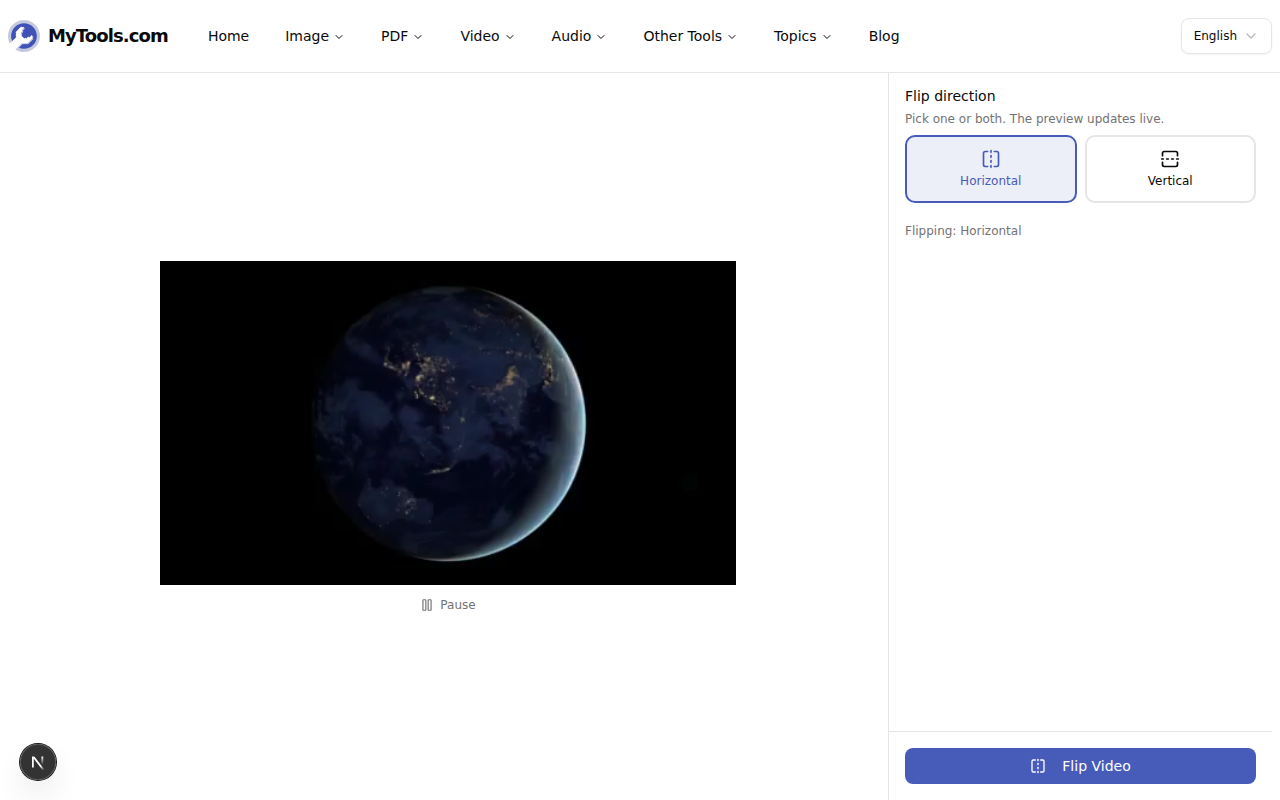
Drop your clip onto the page (MP4, MOV, WebM, AVI, MKV — up to 500 MB). The tool switches to a preview with two toggles: Horizontal and Vertical. Tap one and the preview mirrors instantly, so you can confirm the result before committing. Horizontal swaps left and right — the fix for reversed selfie text. Vertical swaps top and bottom, which you need far less often (more on that below).
Step 3: Export and download
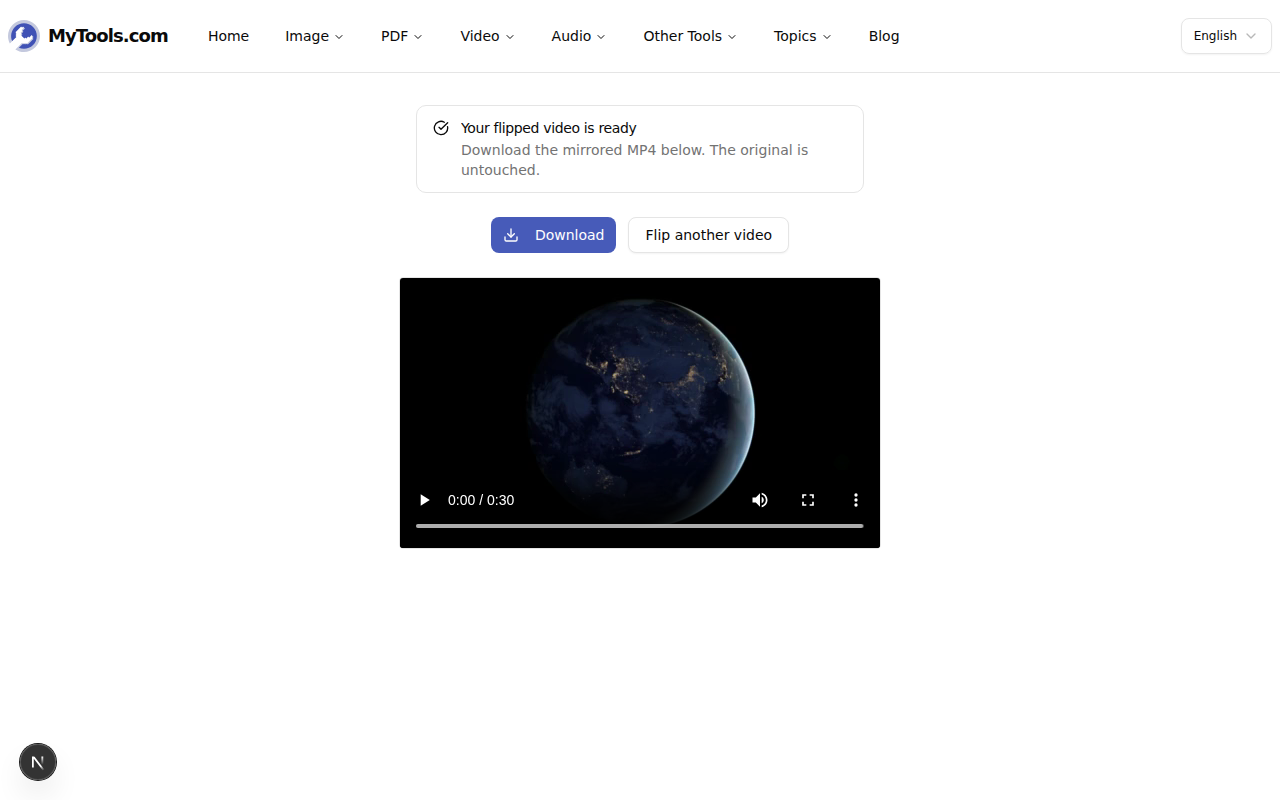
When the preview looks right, click Flip Video. The tool re-encodes a clean MP4 with the mirror baked in and hands it back with a Download button. Your original file is never modified.
Flip vs. rotate vs. mirror — which one do you actually need?
These three get muddled constantly, and picking the wrong one wastes a re-encode.
- Flip (mirror) reflects the image across an axis, like a mirror. Horizontal flip turns a right hand into a left hand. The frame's width and height stay the same.
- Rotate spins the whole frame 90° or 180°. This is what you want for a video shot sideways that plays on its side — reach for the rotate-video tool instead, not this one.
- A "horizontal flip" and a "180° rotation" look identical only on a perfectly symmetrical frame. On real footage they are different: flipping keeps text upright but reversed; rotating turns it upside down.
Rule of thumb: if the problem is "this reads backwards," you want a horizontal flip. If the problem is "this is on its side," you want a rotation.
When each direction earns its keep
Horizontal is the workhorse. Beyond fixing mirrored selfie text, editors use it to recycle a clip: if you only have six seconds of B-roll for an eight-second cut, flipping a second copy horizontally reads as a different shot, so the loop is invisible. It is also handy when you want a subject to face the other way to match an edit's eyeline.
Vertical is rarer but real. It is occasionally needed for footage from a mirror rig or a drone gimbal that mounted the camera upside down, where the image is reflected top-to-bottom rather than simply rotated. If you toggle it and the preview looks wrong, you probably needed a rotation, not a vertical flip.
You can also enable both toggles at once for a 180° mirror — useful for that upside-down-and-reversed footage some action cameras produce when clipped on backwards.
Tips & Troubleshooting
The text is still readable but my face looks "off." That is normal and it is not a bug. We are used to seeing ourselves mirrored (that is what a real mirror shows), so an un-flipped, true-to-life video of your own face can look subtly wrong to you even when it is correct for everyone else. Trust the text, not your face, when deciding which way to flip.
Will flipping hurt the quality? A flip is a clean geometric transform — no pixels are stretched or resampled. The one re-encode needed to write the new MP4 is visually lossless for any normal clip; you will not see a difference.
My clip is over 500 MB. Trim it down first — most of the time you only need a slice of the footage anyway. Cut the part you need with the trim-video tool, then flip the shorter clip.
Does it work on a phone? Yes. Pick a clip from your camera roll, flip it, and save the result back to your photos — the page behaves the same on mobile as on a laptop.
Flipping a video is one of those edits that sounds like it needs real software and actually needs one click. Drop the clip in, decide whether the problem is "backwards" or "sideways," toggle the right axis, and download. Next time a front-camera recording comes back mirrored, it is a thirty-second fix rather than a re-shoot.
Ready to fix that backwards clip? Try the video flipper for free →