
May 23, 2026
How to Convert a Video to MP4 Without Uploading It
Convert MOV, AVI, WEBM, MKV or any video to a clean MP4 on your own machine — no upload, no sign-up, no watermark. Three clicks and a download.
A WEBM screen recording your learning platform won't accept. A folder of .MOV clips someone AirDropped you that the corporate CMS rejects on upload. An AVI file from a decade-old camcorder your phone can't even open. Each of these has the same fix — a different container. This guide walks through converting any of them to MP4 with the MyTools video-to-MP4 converter: the three clicks that do it, plus what is actually happening when "convert to MP4" runs, and which of the four settings is worth touching.
What "convert to MP4" actually means
MP4 isn't a video codec — it's a container. Inside, the picture is encoded in something like H.264, H.265, or AV1, and the audio in AAC or sometimes MP3. The reason everyone asks for "MP4" specifically is that MP4 with H.264 video and AAC audio is the one combination that plays on essentially every device shipped in the last decade: iPhones and Androids, smart TVs, every web browser, PowerPoint, the YouTube uploader, learning platforms, CMSs, even email clients that preview attachments.
A short tour of the formats people typically convert from, and why each one trips up:
- MOV — the same H.264 video inside, but Apple's container. Plays natively on Macs and iPhones, sometimes works elsewhere, often doesn't. Classic symptom: "this format is not supported" on a corporate CMS that takes MP4 fine.
- WEBM — modern VP9/AV1 codecs and excellent compression, but Safari < 14, PowerPoint, Office 365, most TVs, and most school LMSs refuse to open it.
- AVI — a very old container that pre-dates streaming. Modern phones and browsers don't render it without third-party players.
- MKV — an extremely flexible container that desktop apps love. Phones, browsers, and most cloud services reject it.
- FLV / WMV / 3GP — legacy containers from Flash, Windows Media, and pre-iPhone mobile. Nothing built after about 2015 plays them by default.
The converter rewrites whatever you give it into the H.264 + AAC combo inside an MP4 — the lingua franca of digital video. The picture itself doesn't change; what changes is who can read the file.
Four settings, in order of how much they matter
There are four dropdowns on the workspace. You can ignore all of them and get a clean MP4 by hitting Convert. But if you also want a smaller file, it helps to know which lever does what:
- Resolution — the biggest size lever by far. Going 1080p → 720p doesn't just halve the pixel count, it cuts the file roughly in half too. 720p → 480p halves it again. If your output has to fit a size budget, drop resolution first. Never pick a resolution larger than the source: you'd just waste bytes wrapping the same content in bigger pixels.
- Quality — Low, Medium, High. Internally this is the CRF (Constant Rate Factor) the encoder targets. High keeps virtually all detail and lands near the original size; Medium (the default) typically cuts the file in half with no visible loss for normal viewing; Low halves it again and starts showing banding on dark scenes and motion artifacts on action shots. Pick Medium unless you have a specific reason not to.
- Frame rate — 60 → 30 fps roughly halves the data with no perceptual hit, as long as you're not planning to slow the video down later. 30 → 24 is a smaller change and gives footage a slightly more cinematic cadence. Don't drop below 24 fps — you'll see judder.
- Audio — Keep or strip. Removing the audio track saves 5–10% on a typical talking-head clip and a lot more on a slideshow-style video where the picture barely changes. Strip it when you only need the visuals.
Settings apply to every file in the batch, so if you queue up videos with mixed needs, run them in two passes.
The actual workflow — three steps
Step 1: Open the converter and drop your videos in
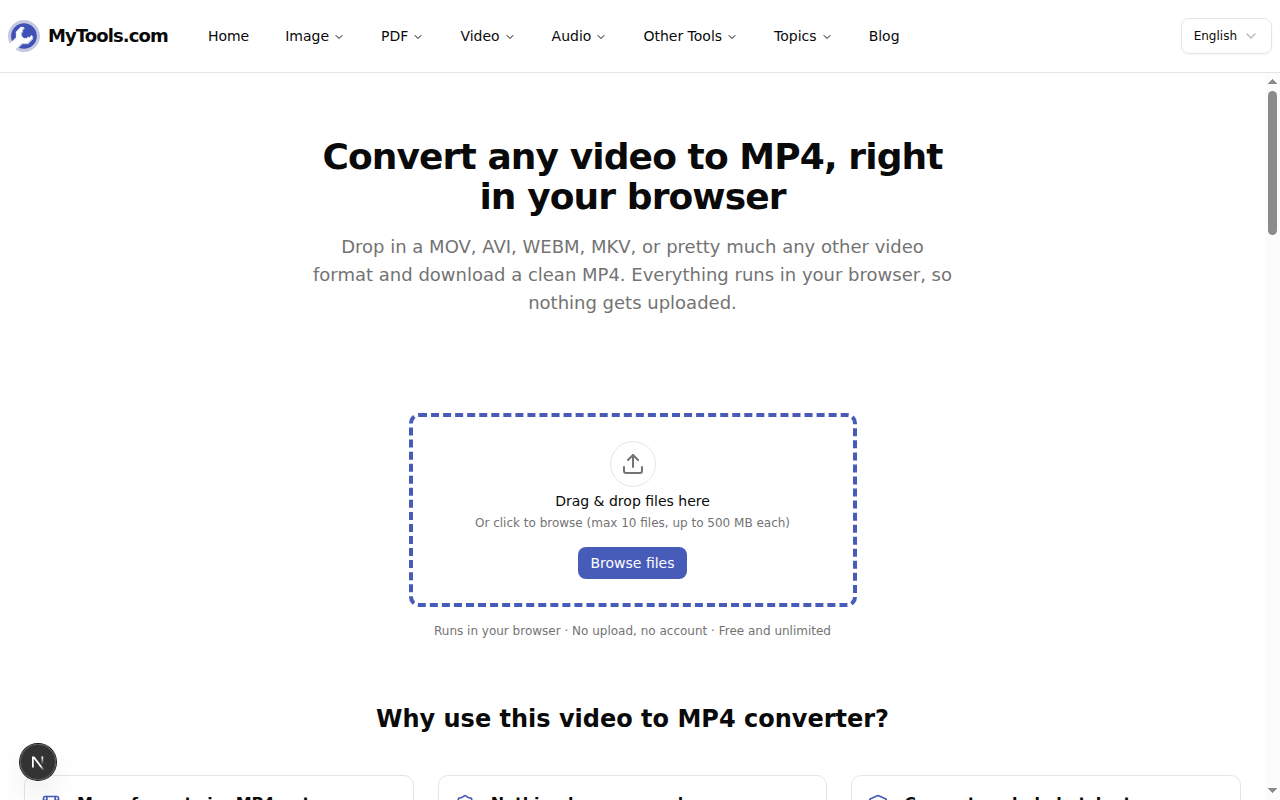
Open the MyTools video-to-MP4 converter. The landing page is mostly a drop zone — no email prompt or signup wall in front of it. Drag in up to ten files at once (500 MB each), or click Browse files. MOV, AVI, WEBM, MKV, FLV, M4V, MPG, 3GP, WMV, OGV — and even existing MP4s, when you want to re-encode a file with an exotic codec (H.265, AV1) into the more compatible H.264 — all work.
Step 2: Take the defaults, or tune them
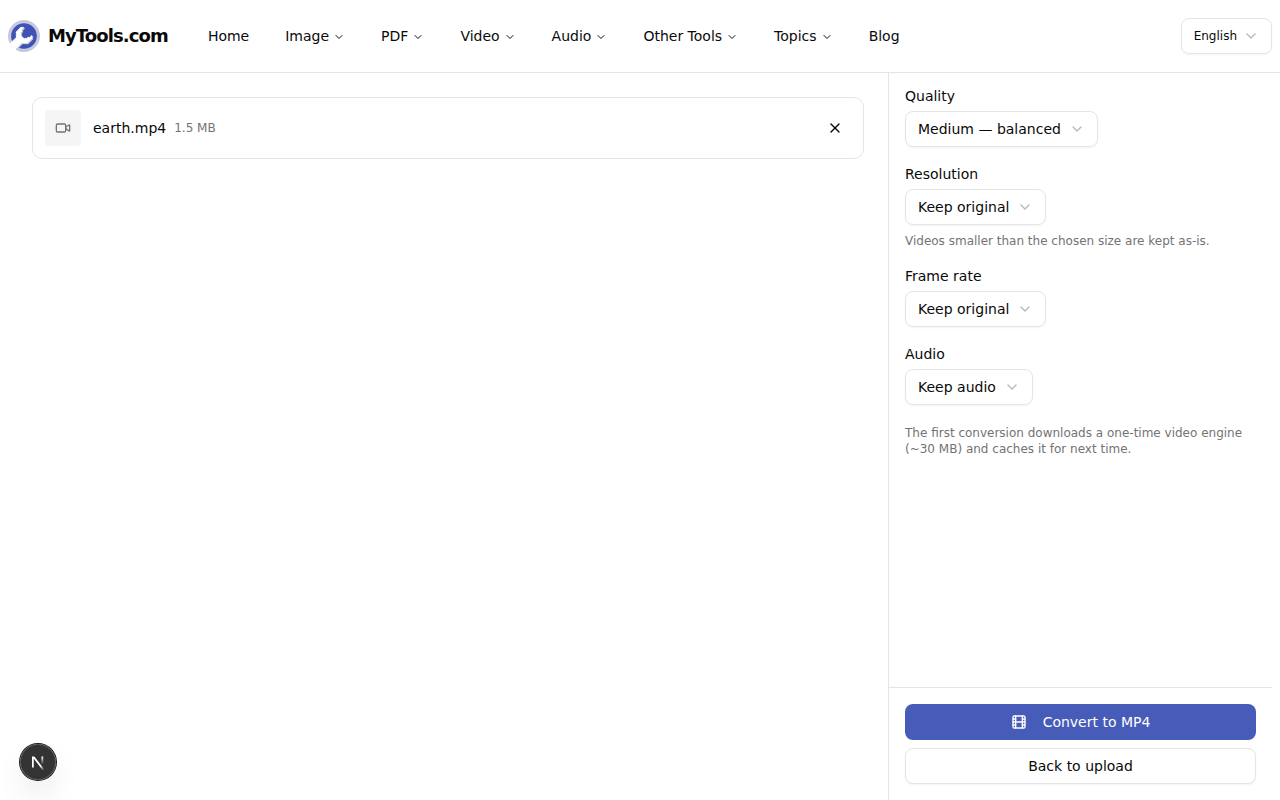
The workspace shows the queue on one side and the four dropdowns on the other: Quality, Resolution, Frame rate, Audio. The defaults — Medium / Keep original / Keep original / Keep audio — re-encode the file to MP4 with H.264 + AAC inside, which is what fixes the compatibility problem. Touch the dropdowns only if you also want to shrink the file or drop a track.
Step 3: Convert and download
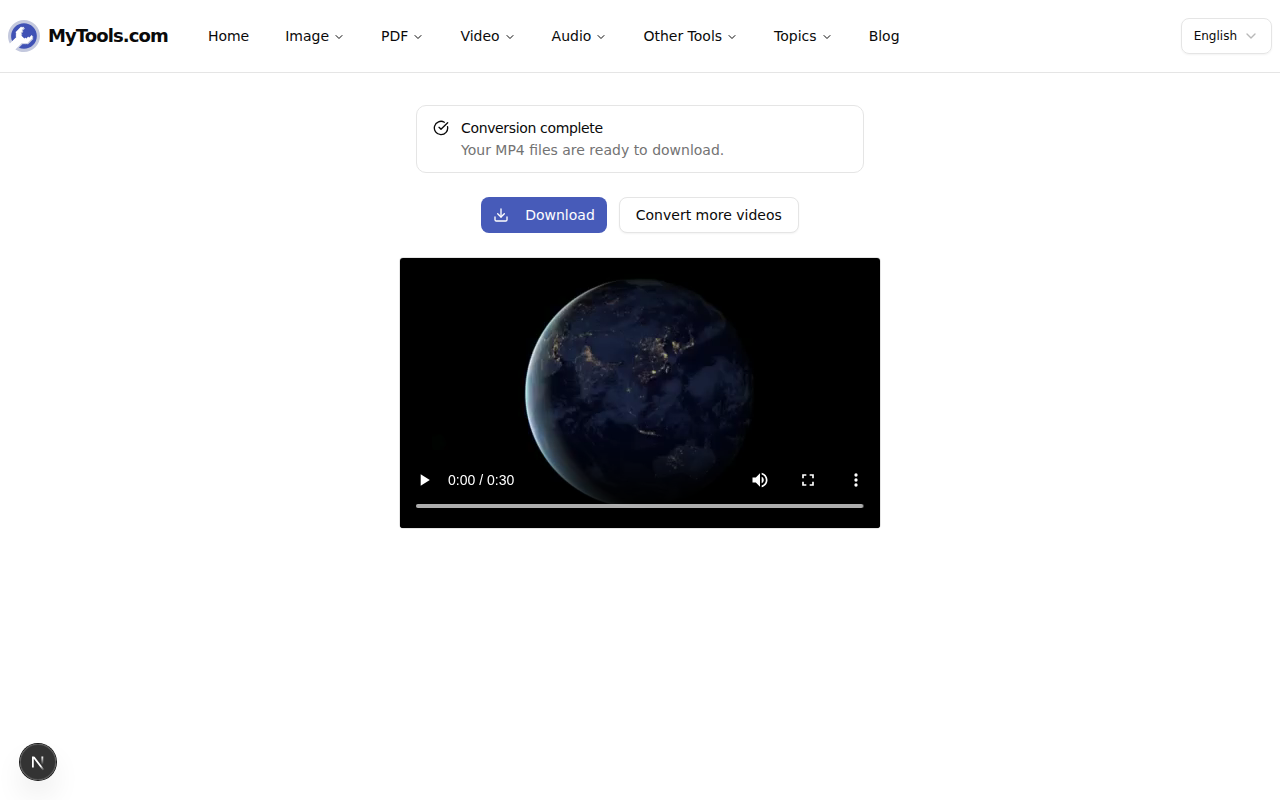
Click Convert to MP4. The video engine — ffmpeg compiled to WebAssembly — downloads once on first use (about 30 MB, then cached forever) and processes the queue one file at a time. Conversion is roughly three to ten times slower than a native ffmpeg install, because everything runs locally instead of on a server: a five-minute HD clip takes a couple of minutes on a current laptop. When the queue finishes, hit Download for a single file, or grab the whole batch as a ZIP.
When something goes wrong
My browser says it isn't supported. The converter needs SharedArrayBuffer and cross-origin isolation to run ffmpeg in the page. Chrome, Edge, and Firefox all have both; Safari needs 15.2 or later. Older browsers physically cannot do in-page video encoding.
It ran out of memory partway through. Browser tabs cap how much RAM they can allocate, and a 4K source at full resolution can hit the ceiling. Drop the output resolution to 1080p or 720p and retry — the encoder uses much less memory at lower resolutions, and that's usually the file you actually want to share.
My file is over 500 MB. Cut it down first with the video trimmer, then convert the trimmed clip. A shorter video is also several times faster to convert.
The point of "convert to MP4" isn't to change the picture — it's to wrap the video in a container that everything plays. Once it's H.264 inside an MP4, the CMS takes it, PowerPoint embeds it, the LMS accepts it, the smart TV plays it, and the email client previews it. The workflow itself is three clicks; the only judgment call is whether you also want to shrink the file on the way through. Convert a video to MP4 →