
1 maggio 2026
How to Convert a PDF Back Into an Editable Word Doc
Turn any text-based PDF into an editable .docx — pick a page range, choose flowing or layout-preserving output, and grab Word files batched up to 10.
Someone sent you a PDF and you need to edit it. The original .docx is on a hard drive you no longer own, or in someone else's mailbox, or it never existed in the first place because the file was exported straight to PDF. Retyping a 20-page contract is unthinkable; uploading it to a third-party converter when it has client terms, salary numbers, or personal data isn't safe. The MyTools PDF to Word converter takes the file, extracts the text and structure into a real .docx, and never sends a byte off your machine.
What converts well — and what doesn't
The conversion runs entirely client-side, on top of pdf.js for parsing and the docx library for rebuilding. That setup has clear sweet spots and clear limits, and knowing which side your file falls on saves you from being surprised by the output:
- Text-based PDFs convert cleanly. Anything exported from Word, Google Docs, LibreOffice, LaTeX, Pages, or Markdown converters. Paragraphs reflow, headings stay headings, simple tables come across as tables. This is the bulk of the PDFs people want to edit — contracts, reports, proposals, CVs.
- Scanned PDFs come out empty. A scan is a sequence of images with no text layer. The converter detects this and warns you, but it can't pull text out — you'd need OCR first. Run the scan through a dedicated OCR tool (Adobe Scan, Tesseract, ABBYY) to produce a searchable PDF, then convert the searchable copy.
- Multi-column layouts get linearised. A two-column academic paper won't keep its columns; the text will read top-to-bottom in a single column. That's almost always what you want for editing, since columns are a print-layout concern, not an editing concern.
- Images, footnotes, form fields, and vector graphics don't survive. This is the honest trade-off of an in-browser converter. If you need pixel-perfect layout, the right move is to keep the PDF and edit it as a PDF instead.
So the rule of thumb: if the PDF was exported from a word processor, the conversion will be excellent. If it's a scan or a magazine spread, you need a different workflow.
From PDF to .docx in three steps
Step 1: Drop your PDF onto the page
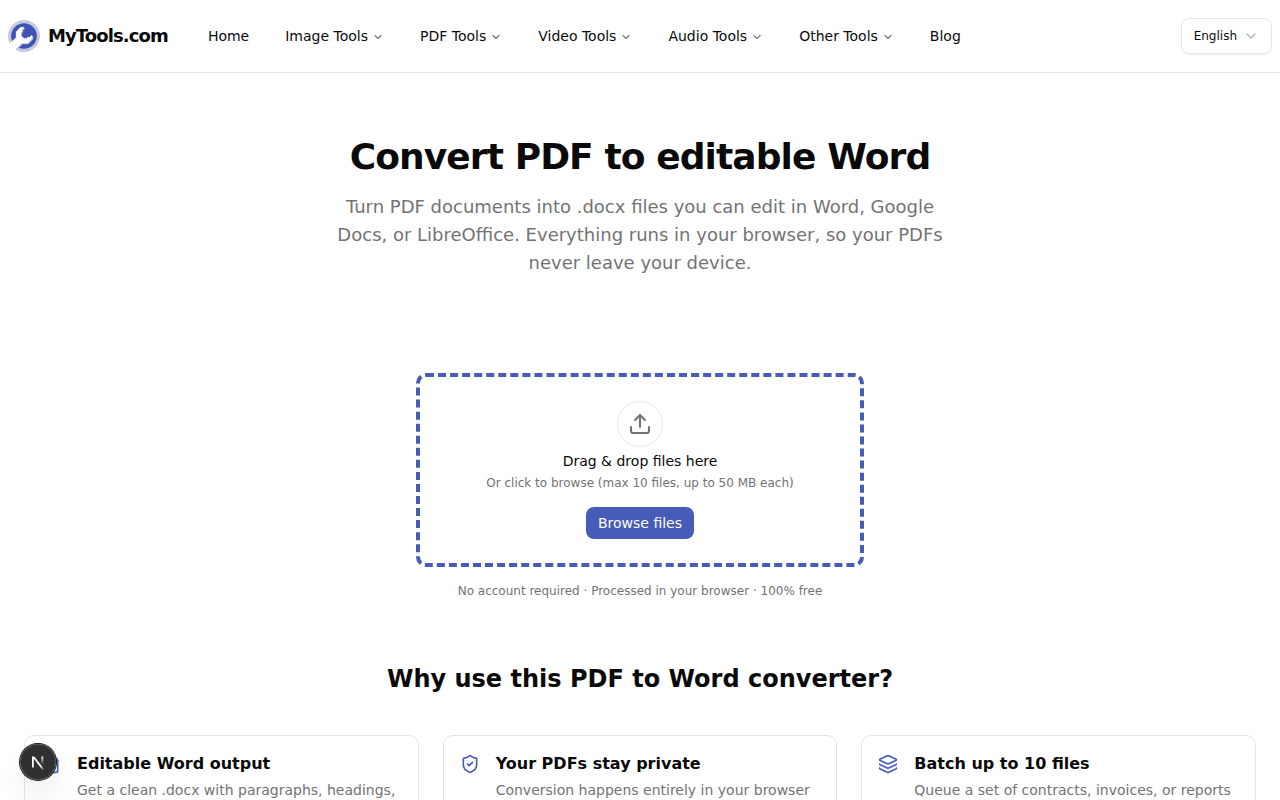
Head to MyTools — PDF to Word. The page renders straight away — no signup wall, no email field, no countdown timer for the free tier. Drag your PDF onto the dashed dropzone, or click Browse files to pick it from disk. You can queue up to ten files at once, each up to 50 MB, which covers most contracts, reports, and multi-chapter documents.
Step 2: Choose the page range and layout
After upload, the workspace appears: each file gets its own row on the left, and the conversion settings sit on the right.
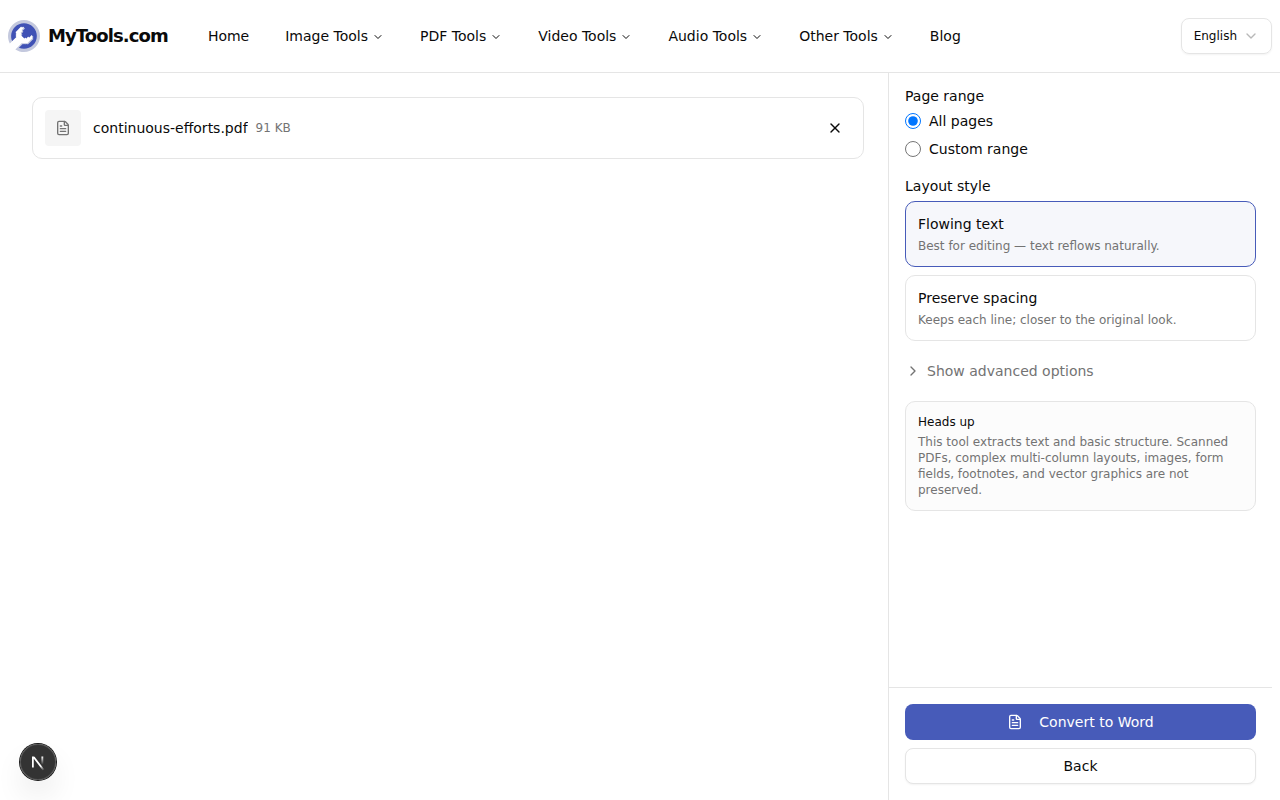
Two settings are worth understanding before clicking Convert:
- Page range. All pages is the default. Switch to Custom range and type something like
1-3, 5, 7-9if you only want part of the document. The syntax accepts contiguous ranges and individual page numbers, comma-separated. - Layout style. Flowing text (the default) rebuilds paragraphs as Word paragraphs — text reflows when you resize the window or change the margins. Preserve spacing keeps each line as its own line, mirroring the original visual layout. The next section explains when each one earns its keep.
Open Show advanced options if you want to toggle heading detection (turns visually larger lines into Word Heading 1 / Heading 2 styles) or table detection (rebuilds simple tables as Word tables instead of plain text).
Step 3: Convert and download
Click Convert to Word. Each row processes in turn — for a single 20-page contract you're looking at a few seconds; a batch of ten files takes a bit longer but stays fast because there's no upload step inflating the wait.
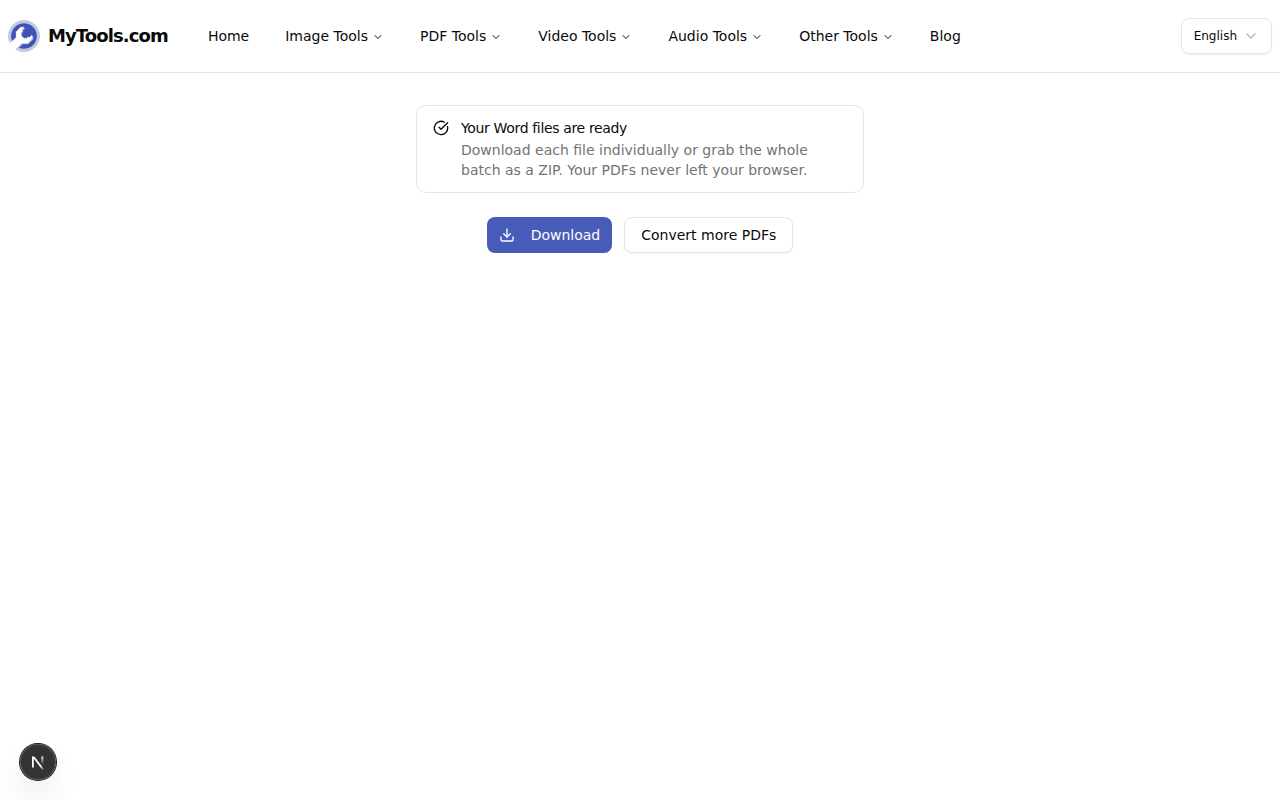
Each output is named after its source — report.pdf becomes report.docx — so a batch of ten lands in your Downloads folder already labelled.
Flowing text vs Preserve spacing — picking the right one
The two layout styles produce noticeably different files, and the right pick depends on what you're going to do with the .docx next:
- Pick Flowing text when you're editing. Redlining a contract, translating a report, updating a CV with a new role, rewriting paragraphs of an old draft. Flowing text gives you Word paragraphs that grow and shrink with your edits — exactly what Track Changes, Find & Replace, and Google Translate expect to operate on.
- Pick Preserve spacing when you're matching the original. If the .docx will be printed alongside the original PDF, or you're reproducing a form layout, or the line breaks themselves carry meaning (poetry, code listings, Q&A transcripts), Preserve spacing keeps every line where the PDF had it. The downside is that editing becomes awkward — adding a sentence in the middle won't reflow the rest of the line.
A quick heuristic: if the PDF you're converting started life as a Word document, choose Flowing text. If it started life as a print-design artifact (a brochure, a form, a book interior), Preserve spacing is closer to what you remember, and you'll skip a lot of "why did this paragraph wrap weirdly" cleanup.
Tips & troubleshooting
A few situations that come up in practice:
The output Word file is empty (or nearly empty). Almost always, the source is a scanned PDF — a stack of page-sized images with no underlying text. The converter flags it with a warning. Send the scan through an OCR step first (Adobe Scan and many phone scanner apps do this automatically), then convert the searchable PDF.
The PDF is encrypted and won't load. Password-protected PDFs need to be opened before they can be parsed. Run the file through the Unlock PDF tool (entering the password you already have), then convert the unlocked copy.
Tables come out as plain text. Table detection is best-effort. Simple tables — a clear grid, consistent row heights, no merged cells — convert well. Multi-row headers, merged cells, and borderless layout tables (table-of-contents-style) often come through as tab-separated text instead. If a critical table breaks, paste it into Word, then use Insert > Table > Convert Text to Table with the right separator.
Headings aren't being detected. Toggle on Detect headings in advanced options. The detector keys off relative font size, so a PDF whose body text and headings are within a point or two of each other will be ambiguous. You can fix the styles by hand in Word in seconds — apply Heading 1 to the first one, then Format > Repeat last action on the others.
The bottom line
A text-based PDF can be a fully editable .docx in well under a minute, with no upload, no account, and no compromise on what's in the file. Pick the layout that matches what you'll do with the result — Flowing text for editing, Preserve spacing for matching — set a page range if you only need part of the document, and let the browser do the rest.