
May 19, 2026
How to Compress an Audio File (MP3, WAV & More)
Compress an audio file — MP3, WAV, M4A or FLAC — to email size by choosing a bitrate preset. Runs on your own machine, nothing uploaded, no signup needed.
A thirty-minute voice memo your phone saved as a 60 MB M4A. An hour-long interview captured as a 600 MB WAV. A folder of podcast exports a CMS keeps rejecting at the upload step. Audio gets heavy fast, and the fix is almost always the same: re-encode it at a lower bitrate. This guide shows you how to compress an audio file with the MyTools Audio Compressor — what the one setting that matters actually does, which files shrink a lot and which barely move, and the three clicks that get you a smaller MP3. Everything runs on your own machine; the audio is never uploaded.
The only setting that matters: bitrate
Audio compression has one real lever: bitrate, measured in kilobits per second (kbps). Lower bitrate means a smaller file and less detail kept. The compressor exposes it as four presets, and because file size is essentially bitrate × duration, you can predict the result before running anything:
- Light — 192 kbps (~1.4 MB/min). Hard to tell from the source on music. Use it when fidelity matters and you only need a moderate trim.
- Standard — 128 kbps (~0.96 MB/min). The default. An hour of audio lands near 58 MB. Fine for music, very good for voice — the right call most of the time.
- Strong — 96 kbps (~0.72 MB/min). An hour near 43 MB. Audibly compressed on music, still clean for spoken word.
- Extreme — 64 kbps (~0.48 MB/min). An hour near 29 MB. Voice-grade — podcasts, lectures, and memos where intelligibility beats fidelity.
So say you have a 50-minute lecture that has to fit under a 25 MB email cap. Standard would land around 48 MB (still too big), Strong around 36 MB (closer), Extreme around 24 MB (finally under). You don't have to do this arithmetic yourself — the file list shows the projected size for every preset as you click between them.
What shrinks a lot — and what barely moves
How much you save depends entirely on what the file already is:
- WAV, FLAC, AIFF (uncompressed or lossless). The big wins. A 10-minute stereo WAV is roughly 100 MB; at Standard it becomes about 10 MB — a 90% cut with no audible cost for normal listening.
- High-bitrate MP3, M4A, AAC (256–320 kbps). Solid savings. A 320 kbps export re-encoded at 128 kbps drops to roughly 40% of its size.
- Already-lean MP3 (128 kbps or lower). Almost nothing to gain. Re-encoding a 128 kbps MP3 at 128 kbps shaves a few percent and loses a little quality, because every lossy pass throws away detail the previous one kept. The projection will read something like −8%; that's the tool telling you this file is already as small as it usefully gets, not a glitch.
This is exactly why the preview is there. Each file shows its current size, the estimated output, and the percentage saved before you commit. If a file says it would barely shrink — or grow — leave it out of the batch instead of trading quality for nothing.
Compress an Audio File in Three Steps
Step 1: Add your files
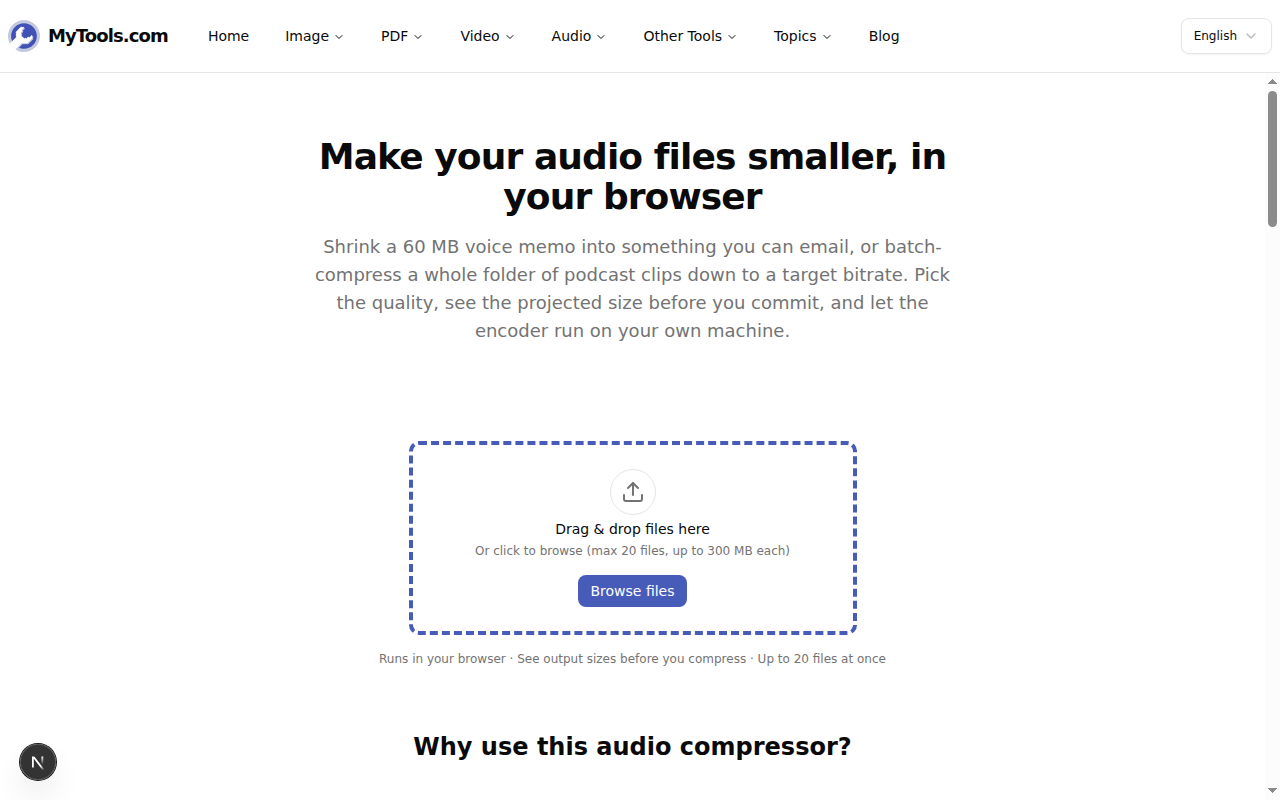
Head to the MyTools Audio Compressor. The first thing on the page is the drop zone, not a pricing wall. Drag your audio in, or click Browse files. MP3, WAV, M4A, AAC, FLAC, OGG and OPUS are all accepted — up to 20 files and 300 MB each, so a whole folder of recordings can go in at once.
Step 2: Pick a preset (and decide about mono)
Every file now shows its size next to a projected output. Choose Light, Standard, Strong, or Extreme; the projections update instantly, so you can land under a target on the first attempt.
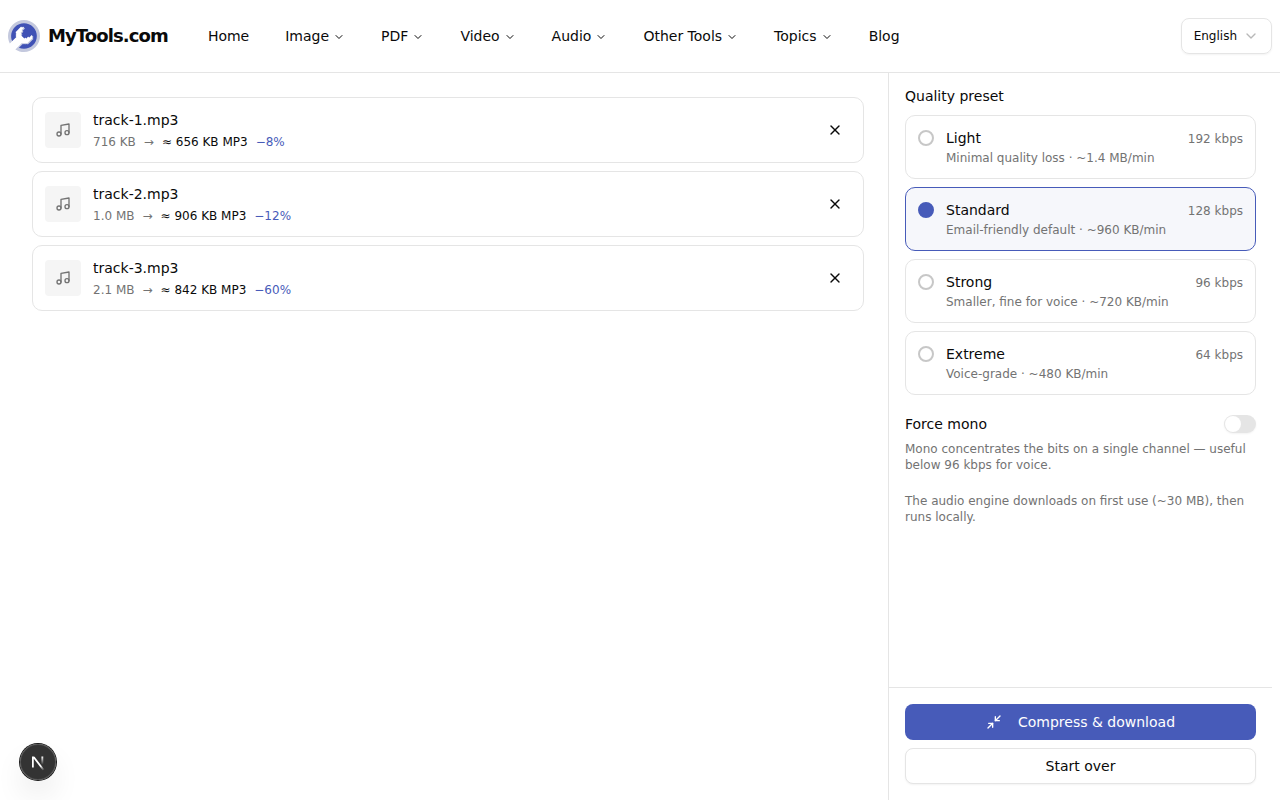
Under the presets sits a Force mono toggle, and it's worth understanding rather than guessing at. It does not make the file smaller at a given bitrate. It makes a low bitrate sound better by spending all the available bits on one channel instead of splitting them across two. Turn it on for spoken-word content at Strong or Extreme — an interview at 64 kbps mono is clearly cleaner than the same 64 kbps in stereo. Leave it off for music, which needs both channels. If every file you added is already mono, the toggle does nothing and the tool says as much.
Step 3: Compress and download
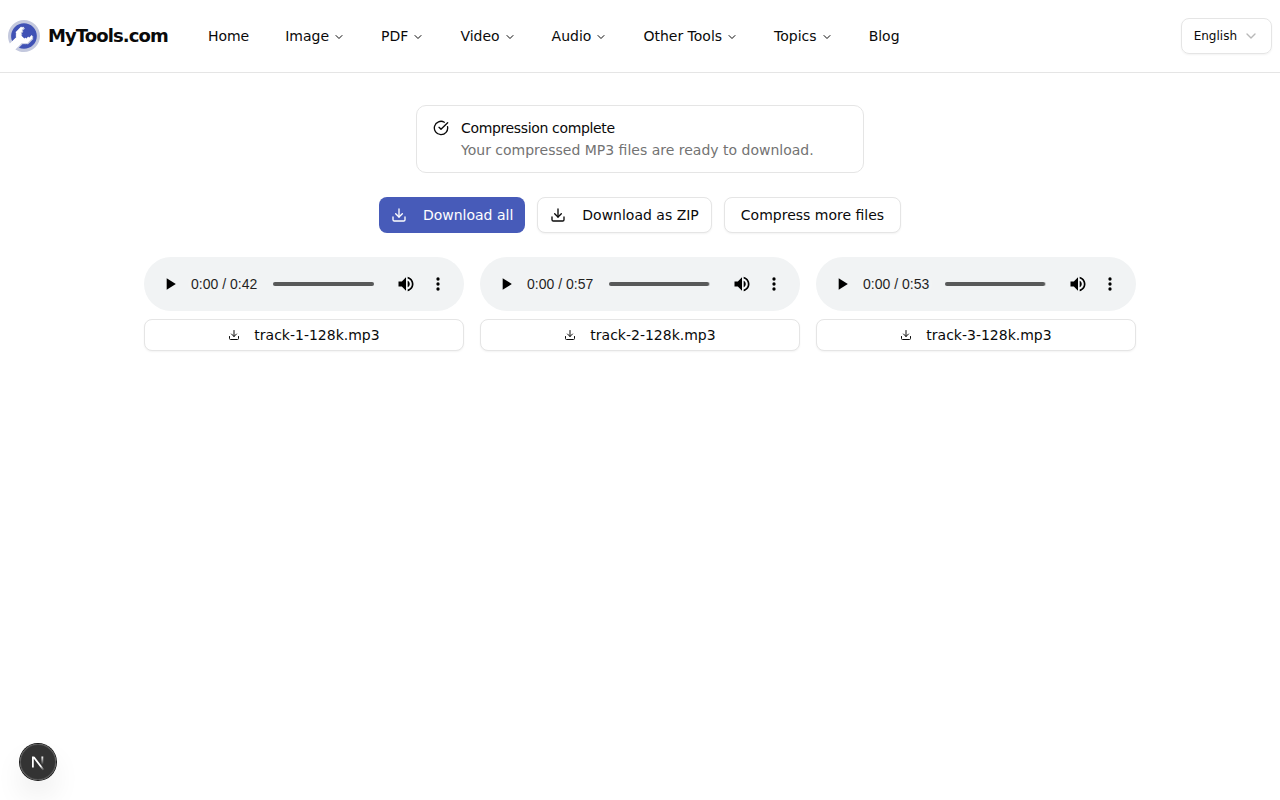
Click Compress & download. The audio engine — ffmpeg compiled to WebAssembly — downloads once (about 30 MB the first time, then cached) and works through the queue one file at a time, all locally. When it finishes, save files individually or take the whole batch with Download as ZIP.
Tips & Troubleshooting
It says my browser isn't supported. The compressor needs SharedArrayBuffer and cross-origin isolation to run ffmpeg in the page. Use a current Chrome, Edge, or Firefox, or Safari 15.2 or later. Older browsers can't do in-page encoding at all.
It's still too big even at Extreme. Bitrate has a floor, and past it the only lever left is length. If there's a long silent intro or dead air, trim it first with the audio trimmer — file size falls in direct proportion to duration, and then a moderate preset is enough.
The output sounds muddy. You went too low for the material. Music at 64 kbps will sound underwater — step back up to Standard. For voice that sounds thin, switch on Force mono before dropping the bitrate further; it buys clarity a lower stereo bitrate simply can't.
One caveat worth stating plainly: compression is lossy and one-directional. Keep your original WAV or FLAC master somewhere safe — the compressed MP3 is a distribution copy, not a replacement for the archive. For everything else, though — emailing a memo, clearing a storage warning, getting a clip under a CMS cap — a smaller MP3 is exactly the right answer. Try the Audio Compressor for free →