
April 22, 2026
How to Fix a Sideways Phone Video
Spin a sideways clip 90°, 180°, or flip it, then save the corrected MP4. Runs on your laptop with ffmpeg.wasm — no upload to anywhere.
You recorded something important on your phone and it came out sideways. Or a client sent raw footage shot at the wrong angle, and you have an hour to fix it. You don't need to install Premiere for that. The MyTools Video Rotator handles 90°, 180°, and flips with ffmpeg.wasm running right on your machine. Below: the workflow itself, plus why phone videos end up sideways in the first place, and the difference between rewriting the rotation flag and actually re-encoding the pixels.
What You'll Need
- A modern browser (Chrome, Firefox, Safari, or Edge)
- The video file you want to rotate (MP4, MOV, WebM, AVI, or MKV, up to 500 MB)
No software to install. Nothing gets uploaded — the entire rotation runs locally using WebAssembly.
Why Phone Videos End Up Sideways
The pixels in a phone video are almost always recorded landscape, regardless of how you held the phone. The phone reads its accelerometer at the moment recording starts and writes a small rotation flag into the file's metadata. When you play the video back in the Photos app or send it to another phone, that flag tells the player to rotate the picture 90° before displaying it — and you see it the right way up.
The trouble starts when the video moves to a system that ignores the flag. Some video editors (older versions of Premiere, certain Android players, anything that re-imports your file) read the raw landscape pixels and never look at the flag. The result: your portrait video plays sideways even though, byte-for-byte, the file is identical to the one that played fine on your phone.
You can fix this two ways. Either you change the flag (fast, lossless, supported by some tools), or you actually rotate the underlying pixels and write a new file with no rotation flag at all (slower, requires a re-encode, works everywhere). The MyTools rotator does the second option, because it's the only fix that works on every player.
Re-encode vs. Just Change the Flag
A few specifics on the trade-off, in case you're trying to decide whether to use this tool or a flag-only utility:
- Flag-only rotation — instant, lossless, no quality change. Works on players that respect the flag. Doesn't work on Discord embeds, certain web video tags, some Windows apps, anything that strips metadata.
- Re-encode (what this tool does) — takes a few seconds to a couple of minutes depending on file size, costs a tiny amount of quality, but produces a video where the pixels themselves are in the right orientation. Plays correctly everywhere, including in players that ignore metadata.
If your goal is to upload the video to YouTube, attach it to an email, send it on Discord or WhatsApp, or hand it to a video editor — re-encode. The flag-only path will trip you up sooner or later.
How It Works
Step 1: Open the tool
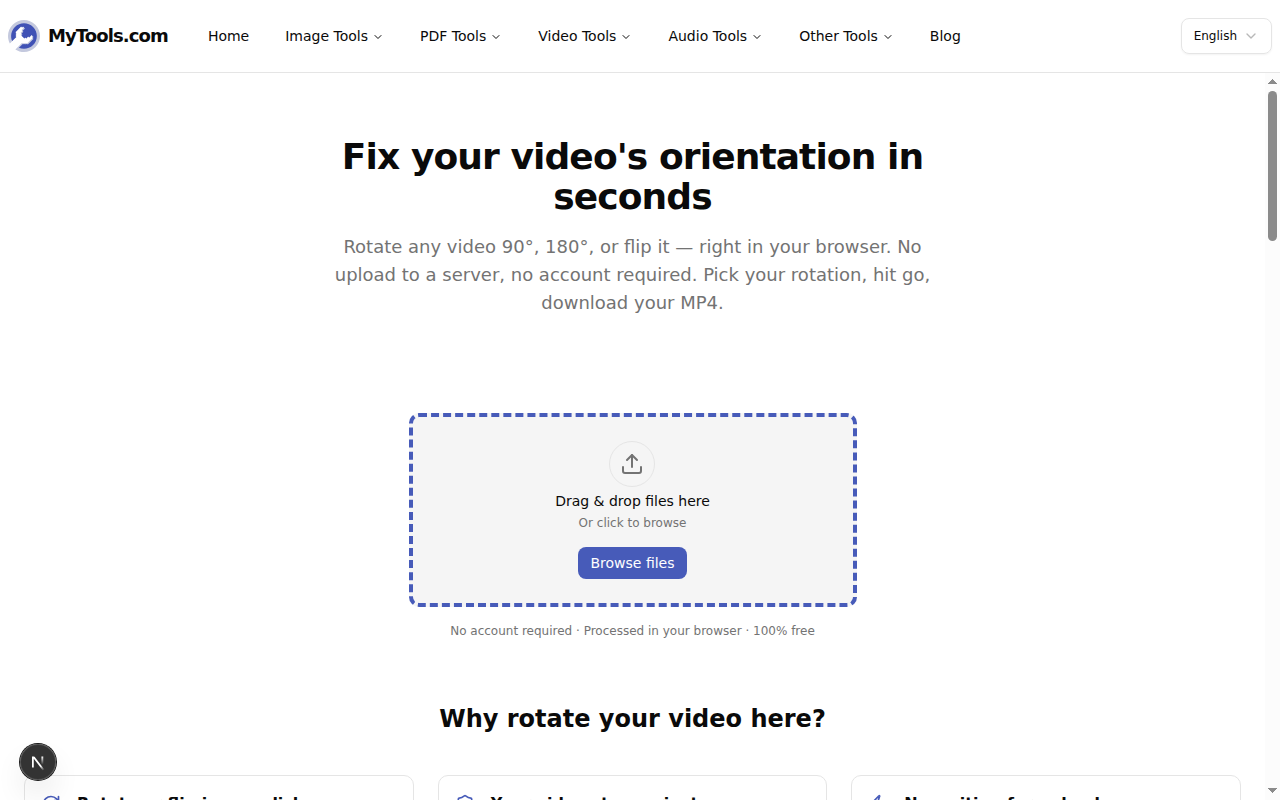
Open MyTools — Video Rotator and the page is ready straight away. No login, no email gate, no countdown.
Step 2: Select your video
Click Browse files or drop your video onto the dashed zone. The tool accepts most common formats — MP4, MOV, WebM, AVI, MKV. Your file stays on your device; nothing is sent to a server.
Step 3: Choose your rotation
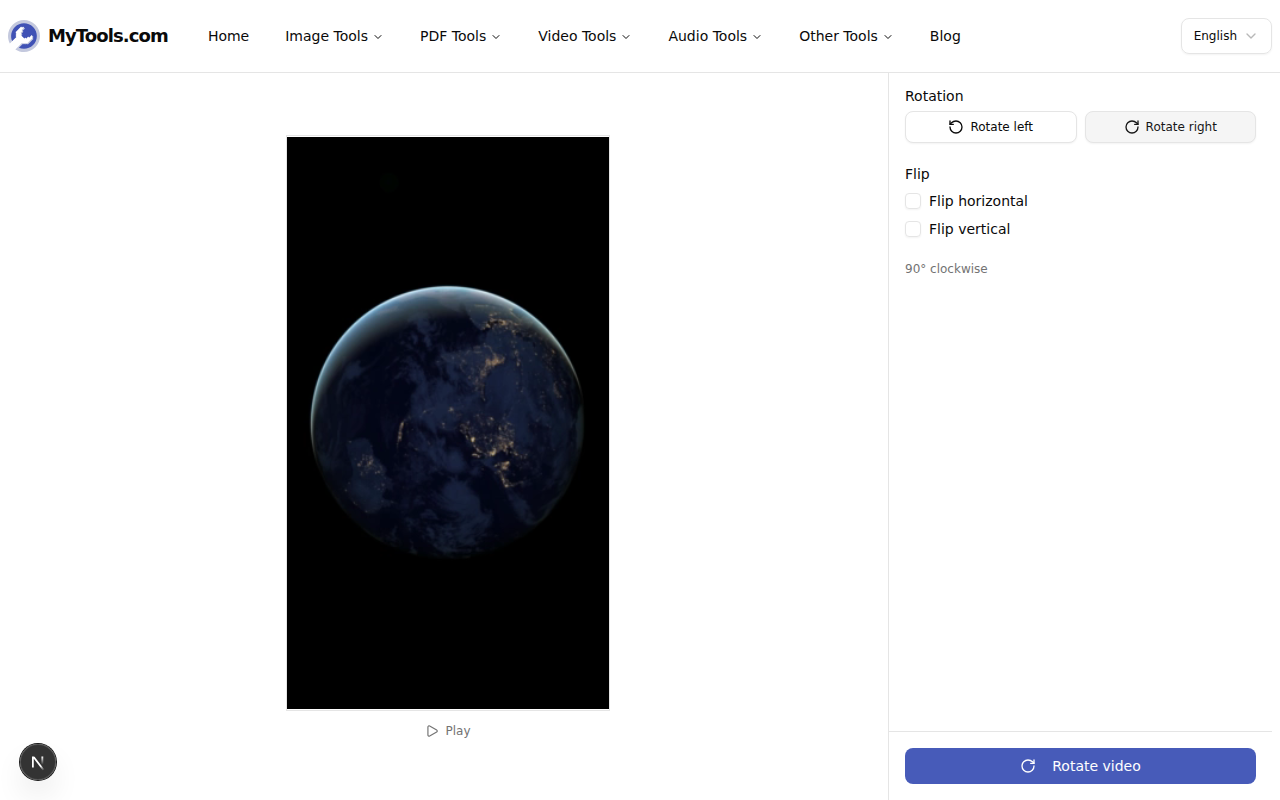
Once the video loads, you see a live preview on the left and rotation controls on the right. Click Rotate right for 90° clockwise, Rotate left for 90° counter-clockwise, or click twice for 180°. If the video is mirrored (front-camera footage, for example), tick Flip horizontal or Flip vertical. The preview updates instantly, so you can confirm the orientation before encoding.
Step 4: Rotate and download
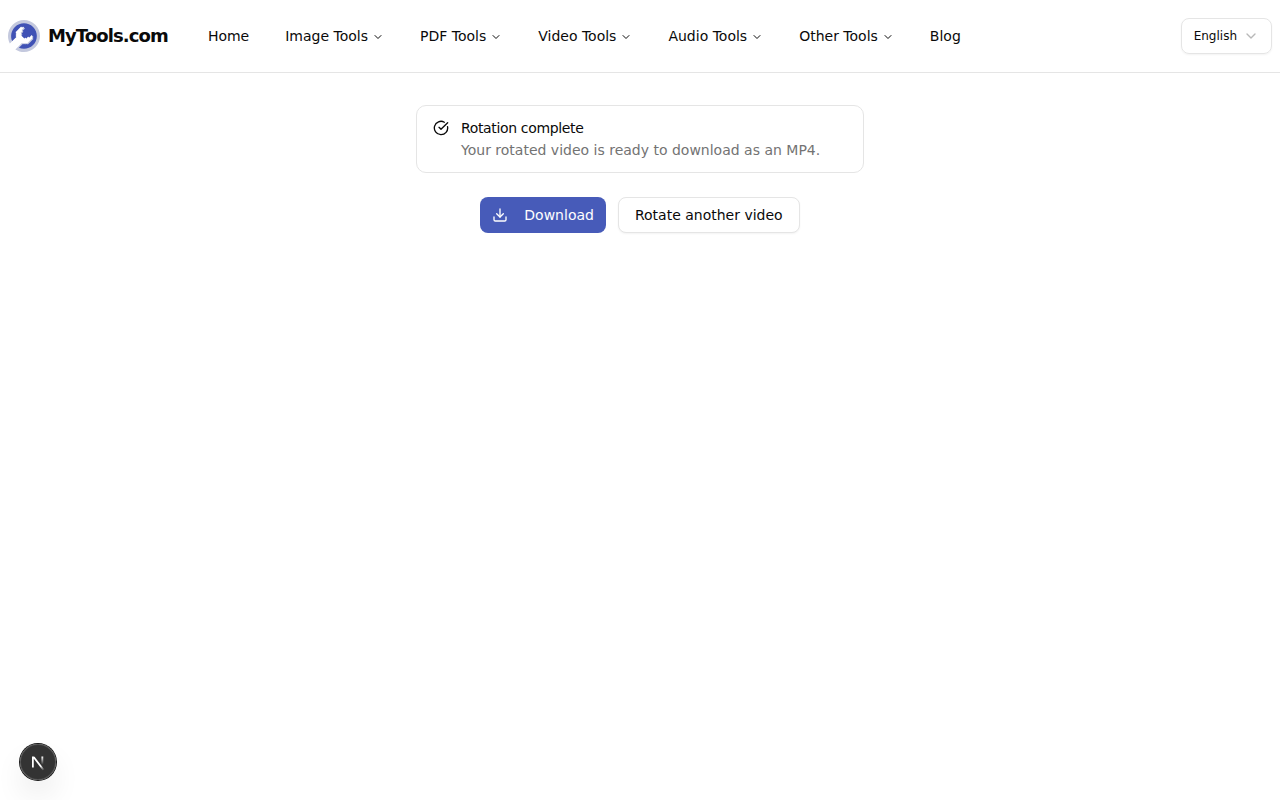
Hit Rotate video to start re-encoding. Processing happens in your browser via ffmpeg.wasm — a few seconds to a couple of minutes depending on file size and machine. When it's done, click Download to save the corrected MP4.
Quality Considerations
Re-encoding always involves a small quality trade-off, and it's worth understanding it so you don't worry about a problem that isn't there:
- The output uses H.264 at a visually lossless setting (CRF ~18). For typical phone and camera footage you cannot tell the re-encoded version apart from the original at normal viewing size.
- For high-bitrate professional footage (cinema RAW, ProRes), the difference is more visible if you zoom in on stills. If that matters, do the rotation in your professional editor instead — it can rotate without re-encoding by manipulating the metadata.
- Audio is copied without re-encoding, so there's no audio quality loss regardless.
For everything that ends up on YouTube, Instagram, Slack, or in an email, the visual difference is imperceptible.
Tips & Troubleshooting
A few situations:
Your file is larger than 500 MB. The tool caps input to keep browser memory stable. Trim the clip first or re-export at a lower bitrate from your phone's editor, then run it through the rotator.
Processing is slow. Browser-based encoding uses your CPU. Older machines and longer files take longer. Closing other heavy tabs helps. If you only need the audio portion, the MP4 to MP3 converter is much faster.
The video plays correctly in some apps but not others. That's the metadata-flag problem described above. The tool's re-encode option fixes it for every player, including the ones that ignore rotation flags.
Wrap-up
Rotating a clip is a thirty-second job once you have the file. Drop it in, pick the angle, preview, save. The footage stays on your device the whole time, even at 400 MB — there's no server to wait for, because there's no server in the path. Try the Video Rotator for free →