
April 27, 2026
How to Split a PDF Into Smaller Files
Carve a big PDF into smaller files: a single chapter, a custom range, or every N pages. Runs on your machine — your file stays put.
You have one big PDF and you only need part of it — a single chapter, a few pages, or a clean break into smaller chunks. Emailing the whole thing is wasteful, uploading it to a stranger's server is risky, and most desktop apps want a paid license for the privilege. Below: the three-step workflow, plus when to reach for each of the three split modes and what splitting does (and doesn't) do to the underlying PDF.
Three Ways to Split — When to Use Which
The tool offers three split modes, and picking the right one for your situation is the difference between getting it done in one click and re-running the operation three times:
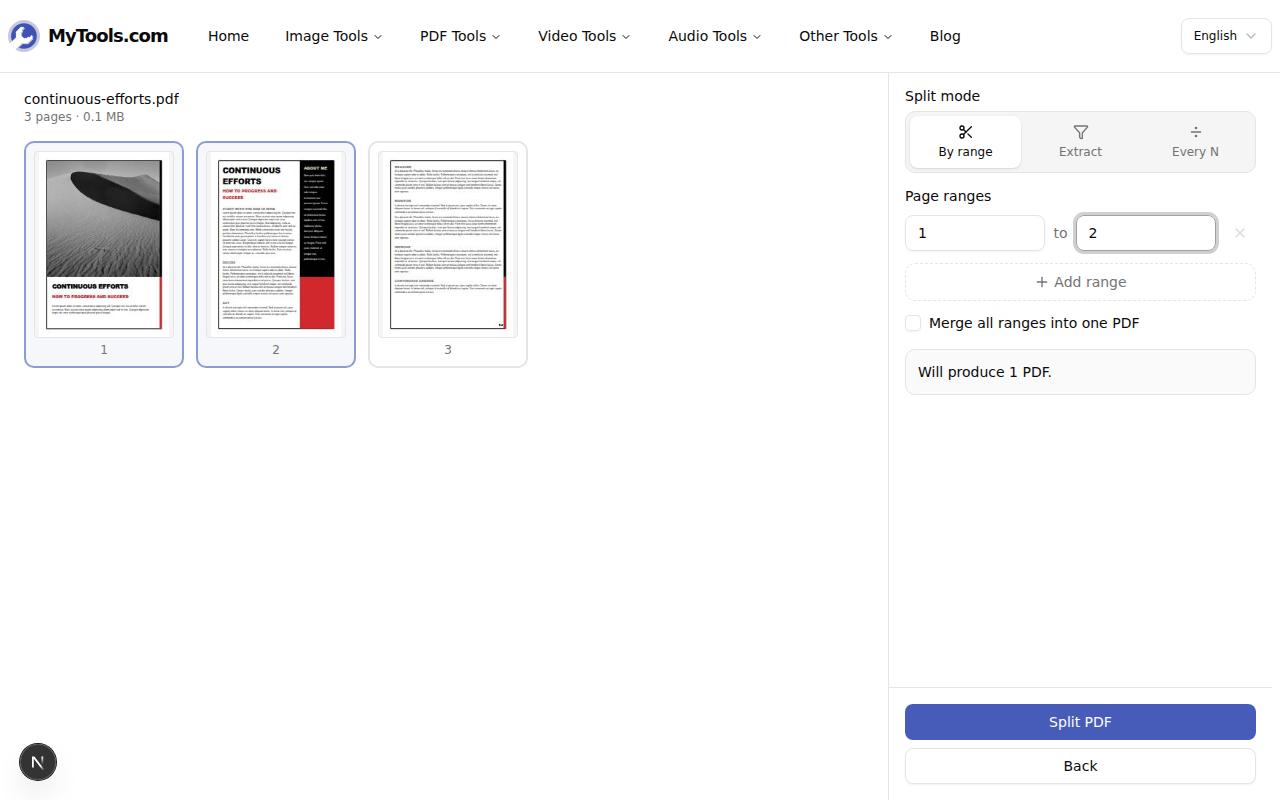
- By range — type one or more "from" / "to" pairs (1–10, 11–30, 31–50). Use when you want contiguous chunks — the introduction, then the body, then the appendix as separate files. Optionally check "Merge all ranges into one PDF" to glue the ranges back together while dropping everything in between, useful for stripping a TOC and the preface before sending.
- Extract — type a list like
1, 3, 5-8or tap the thumbnails directly. Use when you want specific pages, not contiguous ranges — pulling out just the signature page from a 40-page contract, or grabbing the figures from a research paper. Choose whether the extracted pages come out as one merged PDF or one file per page. - Every N — enter a chunk size to slice the file into evenly sized pieces. Use when there's a size or page limit on the destination — a portal that caps PDFs at 20 pages, an email that won't accept attachments over 25 MB, a print shop that prints "every 10 pages on a separate sheet."
A common mistake is reaching for By range when Extract would be cleaner. If you want pages 1, 5, and 9 of a 10-page document, Extract takes one input field; By range needs three. The live summary under the settings tells you exactly how many PDFs you'll get, so you can sanity-check before committing.
What Splitting Does to the PDF
Splitting is a structural operation — the tool rewrites the PDF's page tree to include only the selected pages, then saves a new file. A few things follow from that:
- Text stays selectable. No re-rendering, no OCR. The split outputs are byte-identical extracts of the source pages.
- Images stay sharp. No re-compression. A 300 DPI scanned page in the source is 300 DPI in the output.
- Fonts stay embedded. The tool carries forward only the font subsets needed for the kept pages, which is why a 100-page extract from a 1000-page document can be more than 1/10 the size.
- Bookmarks and the TOC pane are not preserved. Most browser-based splitters drop these — if a TOC matters, you'll need a desktop tool.
- Form fields on extracted pages are kept; fields on dropped pages are gone, including any default values they carried.
- Digital signatures break. A signed PDF cryptographically commits to its exact byte content; extracting any page changes the byte content and invalidates the signature.
In short: a split output is the same content as the original pages, in a smaller file, without the surrounding pages. Visually identical, structurally lighter.
How It Works
Step 1: Open the tool
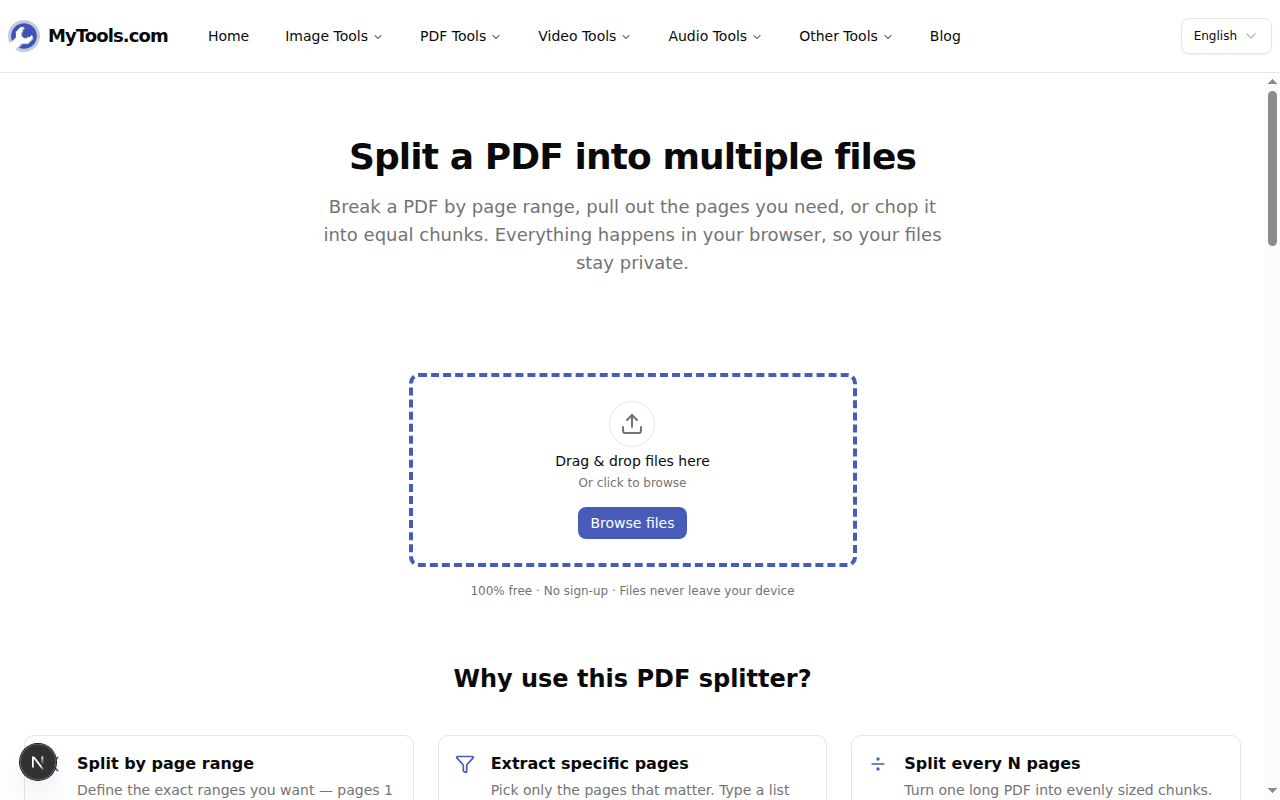
Open MyTools — Split PDF. The page loads like any static webpage; there's no account to create and no installer to download. Drag your PDF onto the dropzone, or click Browse files to pick it from your device. Files up to 200 MB work comfortably.
Step 2: Pick a mode
As soon as the file is loaded, a grid of page thumbnails appears on the left and a settings panel on the right. Pick By range, Extract, or Every N depending on what you're trying to do (see the comparison above). A live summary under the settings tells you exactly how many PDFs you'll produce.
Step 3: Split and download
Click Split PDF. The work runs on your CPU, so it finishes in a beat — no progress bar, no queue.
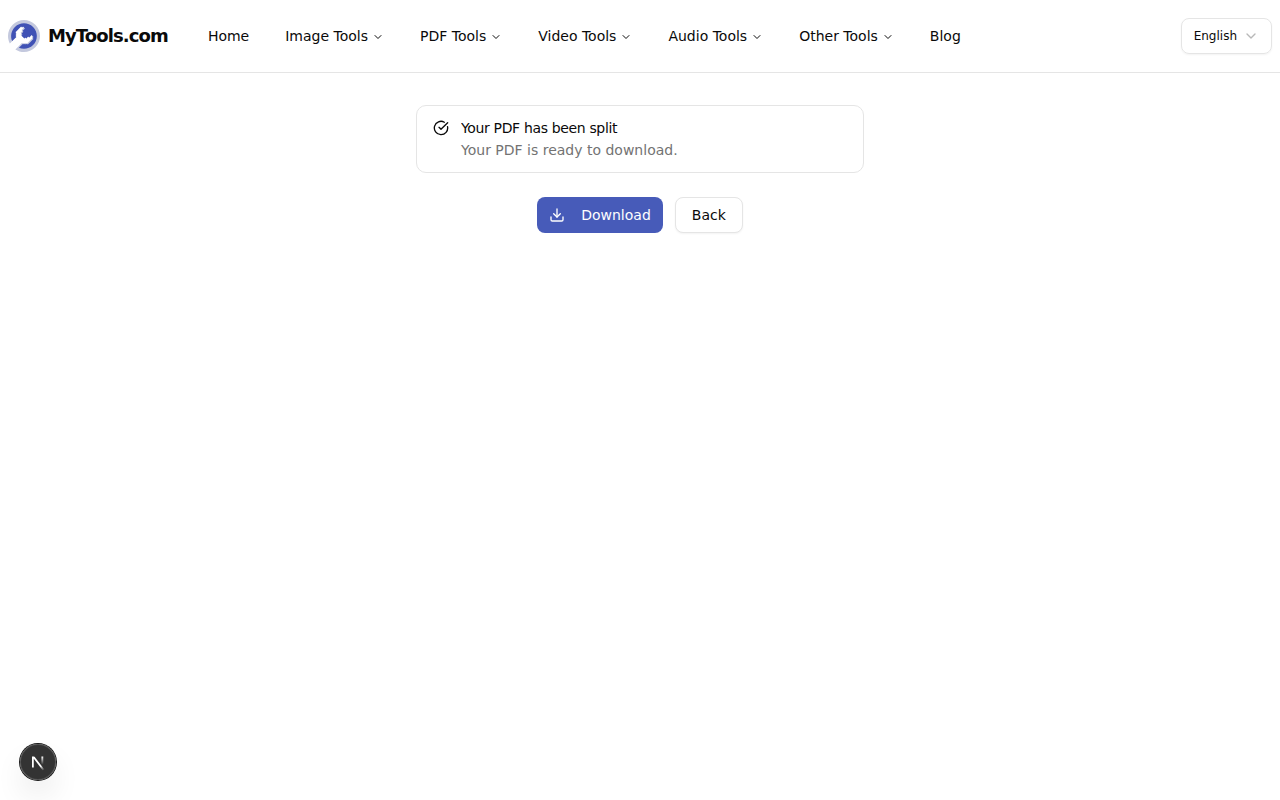
If you produced multiple PDFs, grab them all as a single ZIP or download individually. Filenames are generated automatically from the ranges or page numbers you chose, so you don't have to rename anything.
Tips & Troubleshooting
A few situations:
Your PDF is password-protected. Splitters can't operate on encrypted files. Unlock it first, then split the unlocked copy.
You want to shrink the result, not just split. Splitting doesn't re-compress; the output retains the source's image resolution. If you need a smaller file too, run the split outputs through the Compress PDF tool afterward.
You need the opposite — to combine PDFs. Use Merge PDF instead. The two tools pair naturally: split a long document, work on the pieces, then merge them back.
It's slow on a very large PDF. Performance depends on your device since processing runs locally. A 500-page PDF is noticeably slower on a phone than on a laptop. Closing other browser tabs usually helps.
Done
Splitting a PDF in the browser means the file never leaves your device — important for contracts, scanned IDs, medical records, or anything under NDA. Pick the mode that matches your situation, type the ranges, hit split, save the parts. Try Split PDF for free →