
November 2, 2026
How to Fill a PDF Form Without Printing It
Fill a PDF form without a printer: type answers, tick boxes, add the date and a signature, then save a flat copy. Plus the date-format trap most people miss.
Someone emailed you a PDF form and asked for it back "completed and signed." The form wasn't built to be filled on a screen: no clickable fields, just lines and boxes meant for a pen. The usual workaround is to print it, write on it, then scan it again. If you don't own a printer, that means a trip to a copy shop. This guide shows how to fill a PDF form on your computer or phone instead. You place text, ticks, a date and a signature exactly where a pen would have gone, then download one finished file.
The example below uses a two-page rental application, but the steps are the same for a school consent slip, a tax form or a freelance contract.
Five Steps From Blank Form to Finished PDF
Step 1: Open the form filler
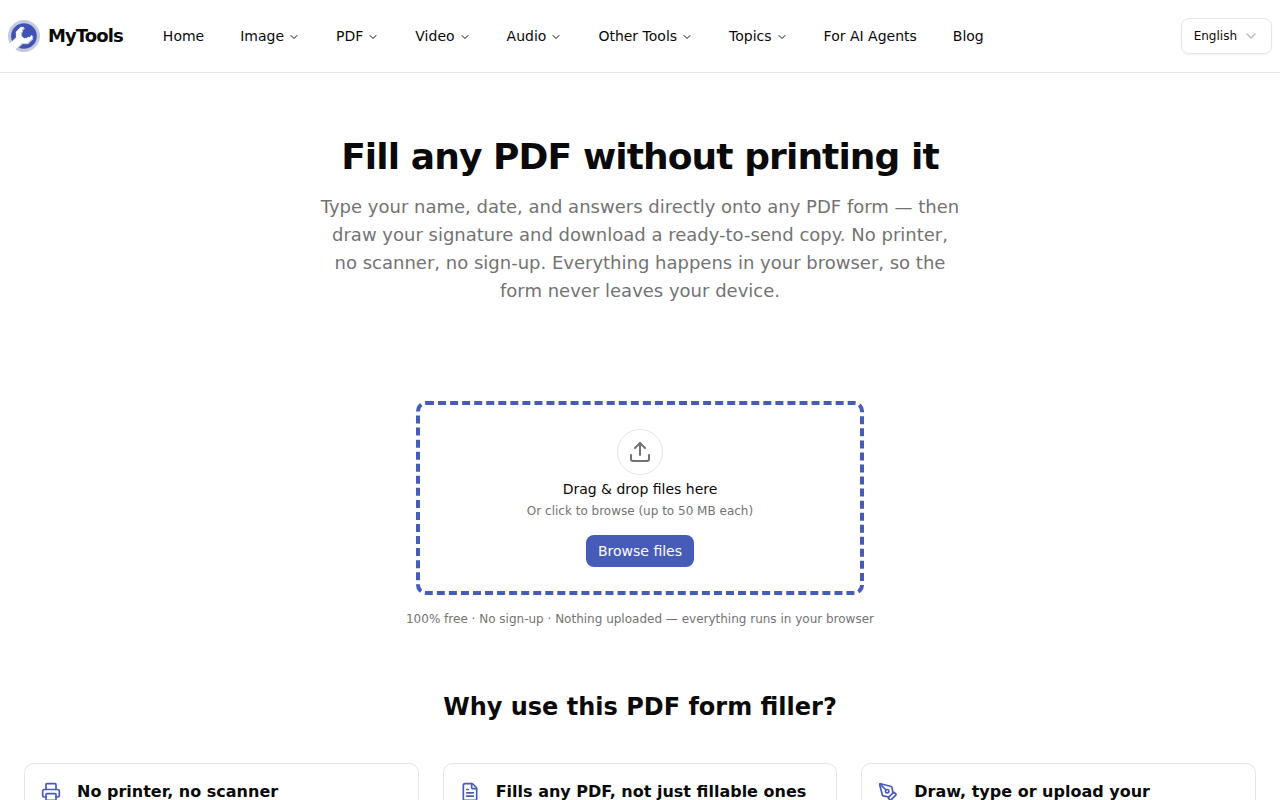
Open MyTools — Fill PDF. There's no sign-in screen before the drop zone. The file is read and rendered by the browser tab itself, so the form, and whatever personal details you type into it, never goes to a server.
Step 2: Drop in the PDF
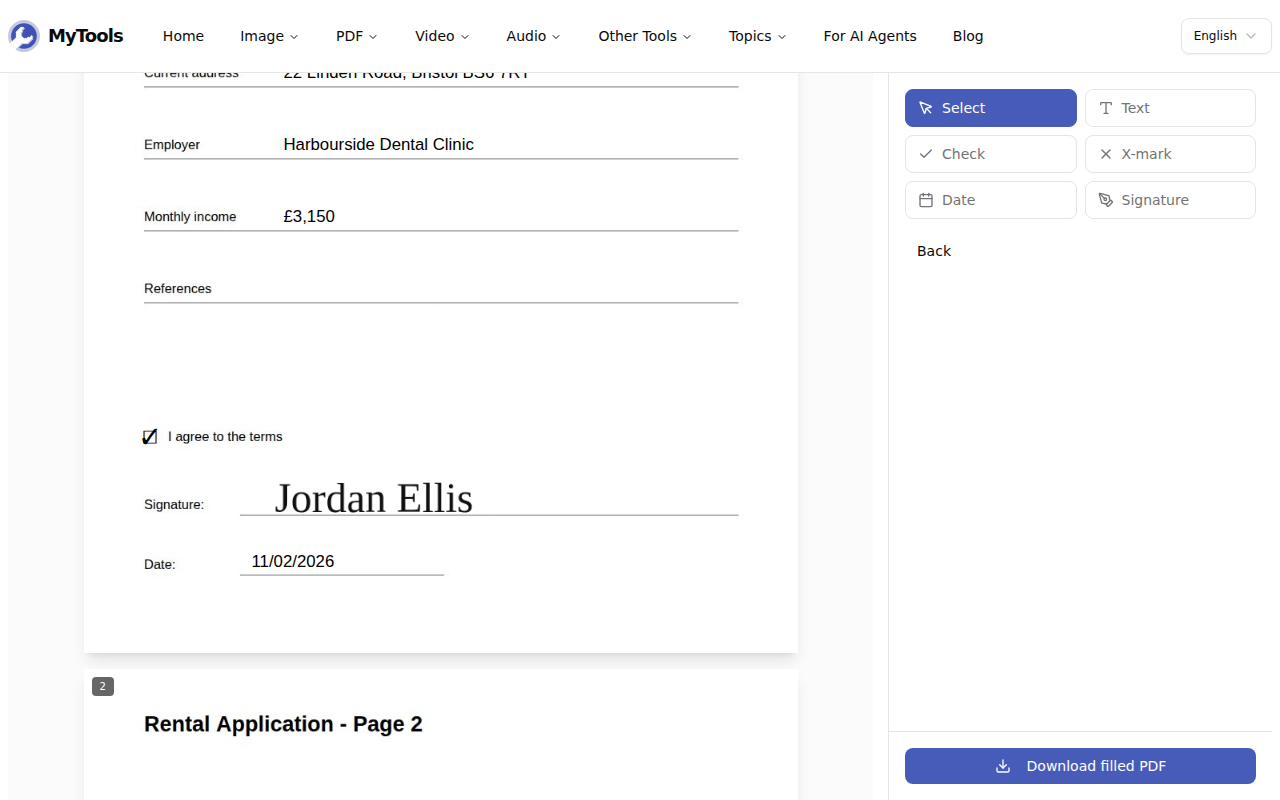
Drag the form onto the page or click Browse files. Every page is drawn in a scrolling column, with a toolbar on the right: Select, Text, Check, X-mark, Date and Signature. Forms of up to 50 pages are accepted. Larger documents are rejected rather than half-loaded.
Step 3: Place your answers
Pick Text, click where the answer should start, then double-click the new box and type. Press Enter when the line is done. The tool switches back to Select after every placement, so you choose Text again for the next field. That stops a stray click from leaving an empty box on the page.
For boxes to tick, choose Check or X-mark and click the centre of the box. A drag moves anything you've placed. The small square at the bottom-right corner resizes it, and for text it scales the font from 8 to 72 points. To remove an item, select it and press Delete.
Step 4: Sign and date
Click Signature. The first time, a panel asks you to create one in one of three ways. You can draw it with a mouse, trackpad or finger. You can type your name and pick one of four handwriting fonts. Or you can upload a PNG or JPG of a signature you've already signed on paper. For an uploaded photo, leave "Remove white background" ticked, so the signature doesn't sit on a white rectangle over the form's line. Click where it belongs. It's remembered for the rest of the session, so a form with three signature lines doesn't make you sign three times.
Date stamps today's date wherever you click. More on its format below.
Step 5: Download the filled PDF
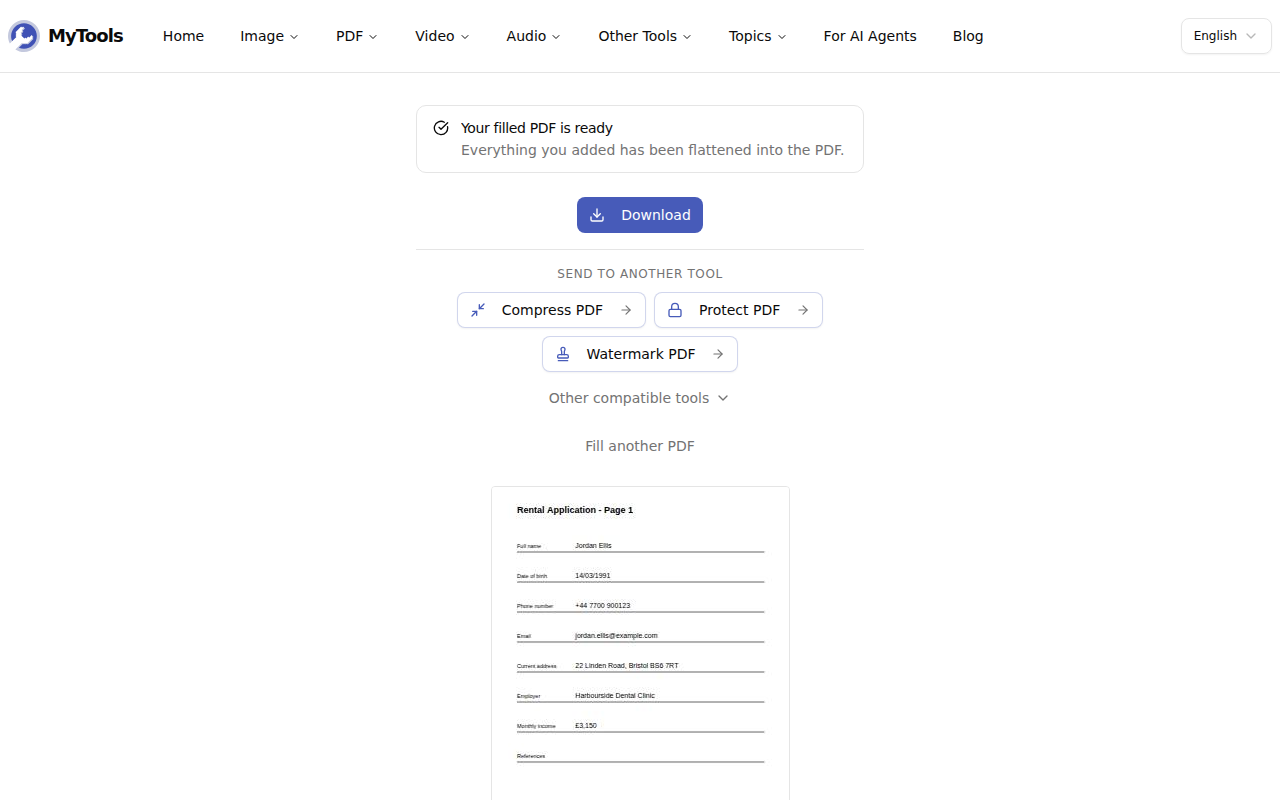
Click Download filled PDF. Your additions are merged into the page itself, and a preview of the result appears under the download button.
The Date Stamp Follows Your Browser, Not the Form
The Date tool writes today's date in your browser's regional format. On a US-English browser, 2 November 2026 comes out as 11/02/2026. A landlord in London or a school office in Sydney will read that as 11 February. The reverse happens too: a browser set to a European language writes day-first on an American form.
Before you download, compare the stamp with what the form expects. Many forms say it right on the line: "DD/MM/YYYY". If they don't match, double-click the date and retype it. Writing the month as a word ("2 Nov 2026") is the one format nobody can misread.
Fillable PDFs: What Actually Happens to the Fields
Some PDFs are true fillable forms. Click a box in Acrobat or Preview and a cursor appears. This tool doesn't type into those built-in fields. It places your text on the page above them, just like it does on a scanned form. That gives you one consistent method for every kind of PDF. It also means the original fields are still in the downloaded file, empty.
That matters only when the recipient's software reads the field data rather than looking at the page. Some HR and government portals pull values straight from named fields, and they'll see blanks. A person opening the file sees your answers. If the instructions say "complete the fillable fields" and the PDF has them, type into those fields in your PDF viewer instead. Use the filler for the parts the fields don't cover, like the signature.
Characters That Won't Export
Typed text is written in Helvetica, one of the standard PDF fonts. Western European accents export cleanly, as do symbols like £, € and curly quotes: José Müller comes through fine. Letters outside that set don't: Polish Ł, Cyrillic, Greek, Chinese, Arabic and emoji all make the export fail. The workaround is to write those parts as a signature instead. Type them under the Type option, or draw them, and they're placed on the page as an image.
Tips
- Text boxes hold one line. For a multi-line answer, like an address block, add one text box per line and line them up by dragging. It also gives you control over where each line breaks.
- "This PDF is password-protected." The filler can't open a form that asks for a password before it opens. If you have that password, remove it first with Unlock PDF, then fill the unlocked copy.
- The portal says the file is too large. Scanned forms are mostly image data. Run the filled copy through Compress PDF at the Recommended level. It rebuilds every page as an image, your answers included, so zoom in on the smallest text and the signature before you send it. If they've gone soft, use the Print level instead.
- Keep the blank original. The download is flat. You can't reopen it later to fix a typo. Refill from the blank file instead, which takes a couple of minutes once you know the layout.
- Closing the tab by accident. If you've placed anything, the browser asks before leaving the page. Nothing is saved between visits, so finish the form in one sitting.
- A drawn signature isn't a certificate-based signature. It looks like your pen signature, and most landlords, schools and clients accept it. A few institutions require a cryptographic digital signature tied to a verified identity. If the instructions mention one, this isn't it.
Filling a PDF form on screen takes a few clicks per field, plus one decision worth a second look: the date format. Check the stamp against what the form asks for, keep the blank file in case you need a redo, and send the flat copy.