
5 juin 2026
How to Convert an Image to PNG (HEIC, WEBP & More)
Convert HEIC, WEBP, AVIF, TIFF, or JPG to PNG on your own device. Lossless output, transparency kept intact, batch up to 30 files, nothing uploaded.
A design tool won't import your iPhone's HEIC screenshot. A 2014-era CMS only accepts PNG and your icons are WEBP. A build script chokes on an AVIF someone committed. Different problems, one fix: convert the image to PNG, the format almost everything still understands. This guide shows how to convert an image to PNG without installing software or handing your files to someone else's server — plus the one thing about PNG that surprises people the first time: the file can come out bigger than the original.
What PNG is good at (and the one thing it isn't)
PNG has two qualities that make it the safe answer when another format gets rejected.
First, it's lossless. When the converter writes a PNG, every pixel it decoded from your source is preserved exactly. Nothing is approximated or thrown away, so there's no quality slider to second-guess and no generation loss if you convert the same file twice. That's the opposite of JPG, which discards detail to save space.
Second, it keeps transparency. PNG supports an alpha channel, so a logo with a see-through background stays see-through. Convert that same logo to JPG and the transparent area gets filled with a solid color, usually a white box. When the transparency matters, PNG (or WEBP) is the only sensible target.
The trade-off is size. Because PNG keeps every pixel, a photograph saved as PNG is often several times larger than the same photo as a JPG, with no visible gain. PNG was built for graphics, screenshots, logos, and anything with sharp edges or flat color — not for holiday photos. If your source is a photograph and you don't need transparency, converting it to PNG inflates the file for nothing. More on that below.
How to convert an image to PNG
Step 1: Open the converter
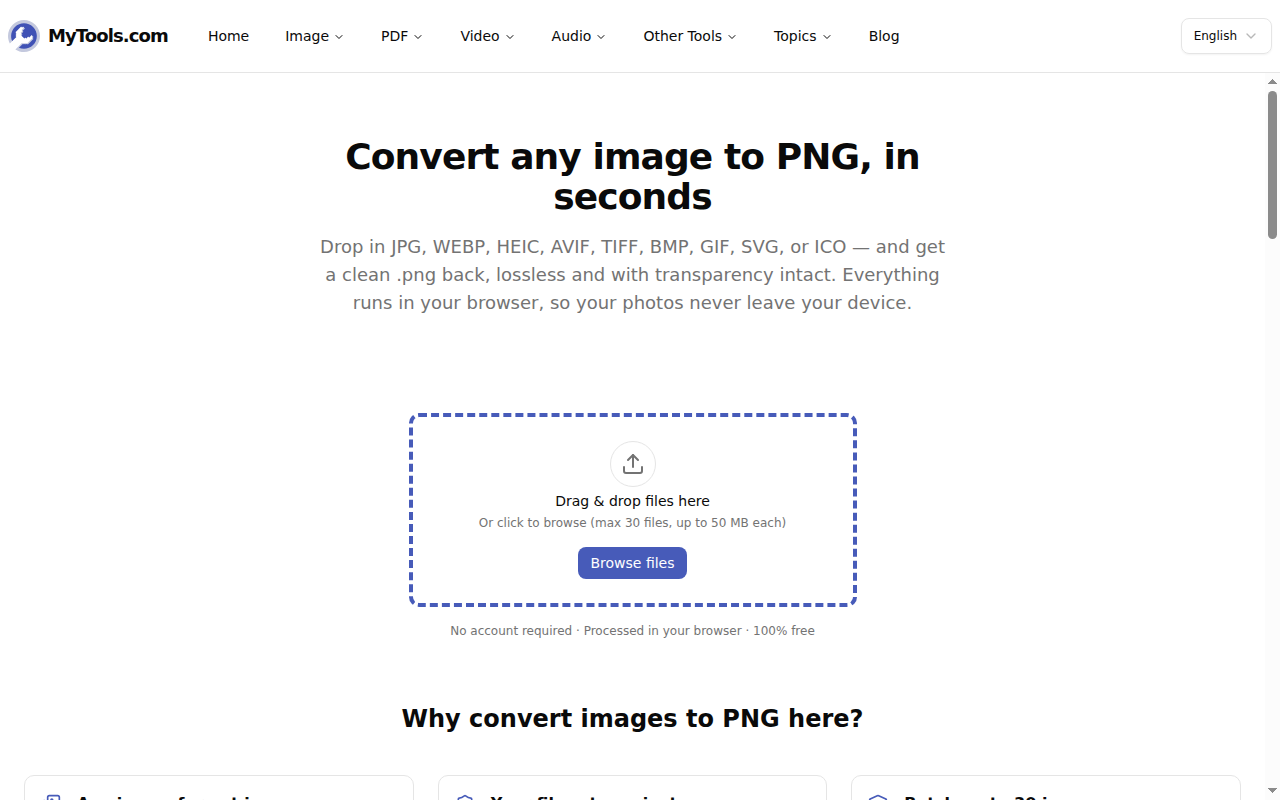
Open the MyTools Image to PNG converter. What loads is a drop zone and not much else: no account gate, nothing to dismiss before you can pick files. Drag in up to 30 images at once, 50 MB each, or click Browse files. It reads JPG, WEBP, HEIC/HEIF, AVIF, TIFF, BMP, GIF, SVG, ICO, and even PNG itself when you only want to re-encode or resize.
Step 2: Decide whether to resize
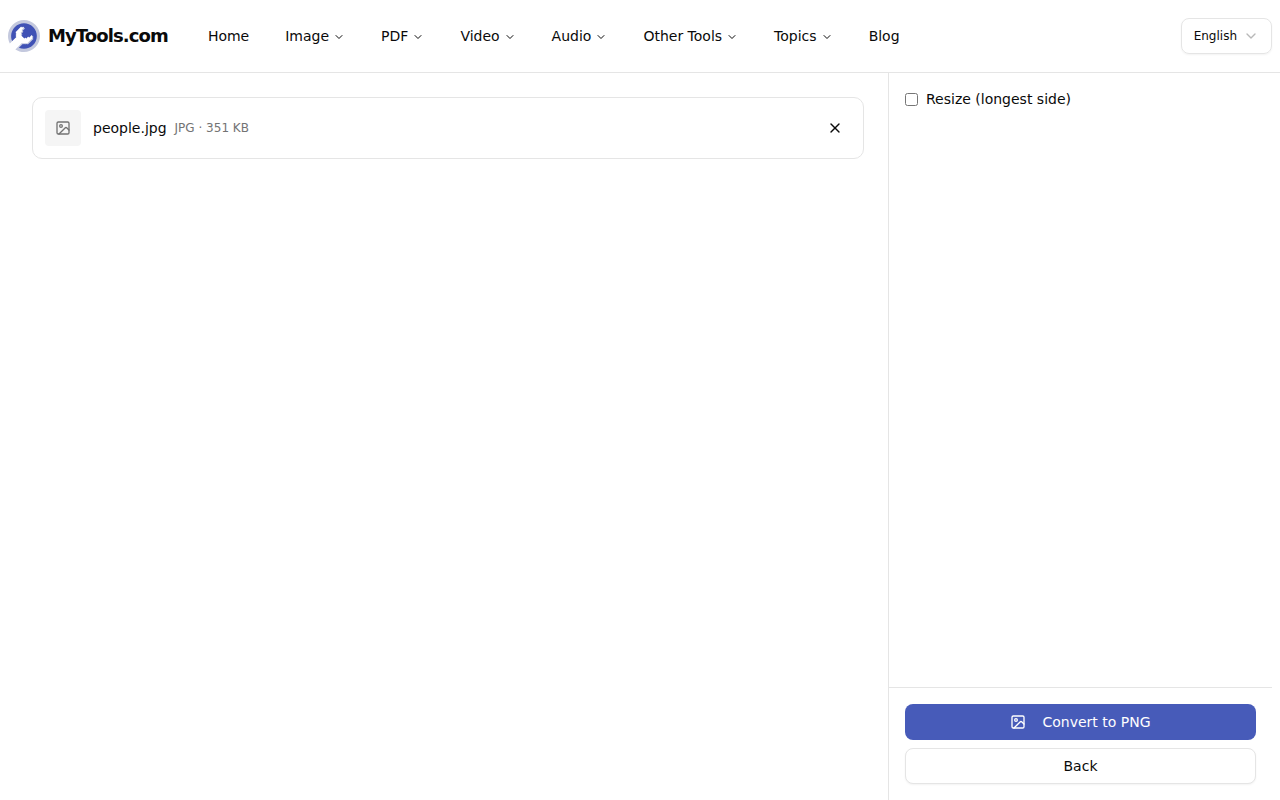
Once the files load, you'll see them listed with a single optional control: a Resize (longest side) checkbox. PNG is lossless, so there is no quality to tune — the only decision is whether to cap the dimensions. Leave it unchecked to keep full resolution. Tick it and set a maximum if you want to hold a batch to, say, 1920 px on the long edge, a practical ceiling for screenshots headed into a web page.
Step 3: Convert and save
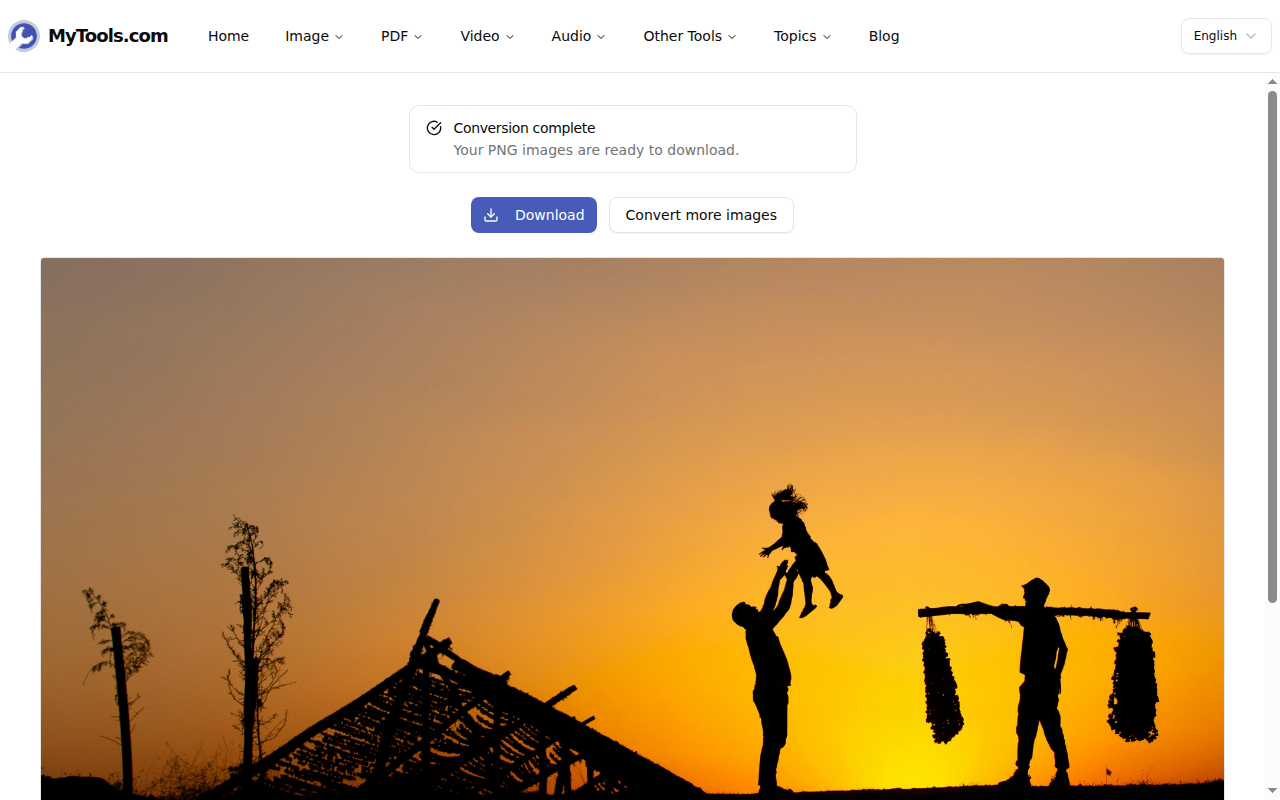
Click Convert to PNG. Every image is rebuilt as a PNG on your own machine, HEIC and AVIF included — formats a lot of web converters quietly punt to a server. When it finishes, grab the single PNG, or download a whole batch as one ZIP. Your source files are untouched; you've just got PNG copies now.
The file-size surprise, and what to do about it
The most common confusion with PNG is opening the result and finding it bigger than the file you started with — sometimes much bigger. That's not a bug. A 4 MB JPG photo can become a 15 MB PNG, because the JPG reached its small size by discarding detail and PNG refuses to. For a screenshot, logo, or diagram the difference is small and the lossless copy is worth it. For a photograph, it's usually the wrong trade.
So before you convert, ask what the image actually is:
- Screenshot, logo, icon, diagram — anything with text or sharp edges. PNG is right: crisp edges, no artifacts, transparency intact.
- A photograph you just need smaller. PNG is the wrong target. Convert it to JPG instead, or to WEBP if you want a small file that still keeps transparency.
- Already a heavy PNG that only needs to be smaller. Tick the resize box on the way through to cap its dimensions.
Resizing is the one lever that meaningfully shrinks a PNG, because you can't compress away detail without changing pixels. Halving the longest side roughly quarters the pixel count, and the file shrinks with it.
Tips & answers
My iPhone saved it as HEIC — will that work? Yes. The converter decodes HEIC/HEIF on the page, so an iPhone screenshot or photo becomes a PNG with no desktop app involved. On iOS the downloaded PNG opens in Safari's viewer; tap the share icon to save it to Photos.
What happens to a transparent WEBP or SVG? The transparency survives. PNG has a native alpha channel, so see-through and partially see-through pixels carry over untouched — no flattening to a background color, no surprise white halo.
Can I convert an animated GIF? The converter takes the first frame of an animated GIF and writes it as a single PNG. A static GIF converts as-is. Multi-frame export isn't supported yet.
How many at once? Up to 30 files per batch, 50 MB each — enough for a full HEIC album or a folder of multi-megapixel TIFF scans. Each file encodes on your own device, so nothing waits in a server queue.
Converting to PNG is the right move whenever a system demands it or transparency has to survive the trip: screenshots, logos, icons, UI assets. When the image is a photo and size is the priority, reach for JPG or WEBP instead. For everything else, the lossless copy is one click away.
Need a clean PNG? Open the Image to PNG converter →