
April 29, 2026
How to Watermark a PDF (Text or Logo, Every Page)
Add a text or logo watermark to every page of one or many PDFs — sized to the page, positioned where you want, with a live preview before you export.
You're about to send a PDF — a draft contract, a sample portfolio, an internal report — and you'd rather it didn't end up forwarded without context. The fix is a watermark on every page, and you don't need a desktop PDF editor for it. This guide walks through watermarking a PDF online with text or a logo, sized correctly across mixed page formats, with the result previewed before you export.
What you'll need
- A modern browser (Chrome, Firefox, Safari, Edge — anything from the last few years).
- The PDF(s) you want to watermark. Up to 10 at a time, 50 MB each.
- Optionally, a logo as a transparent PNG if you want an image watermark instead of text.
Watermark a PDF in three steps
Step 1: Open the tool and drop your PDF in
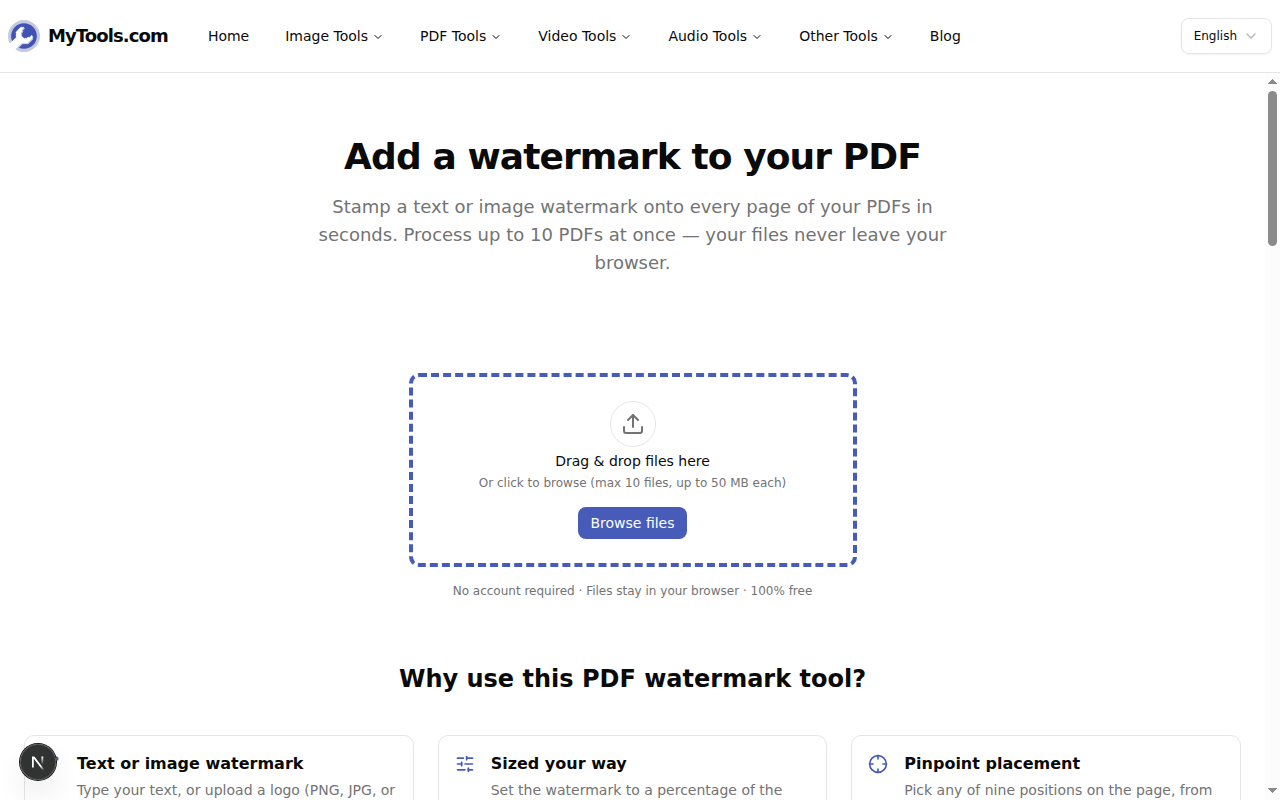
Pull up MyTools — Watermark PDF. Drag your PDF onto the upload zone, or click Browse files and pick it from disk. You can drop several at once if you want to apply the same watermark to a batch.
Step 2: Configure the watermark
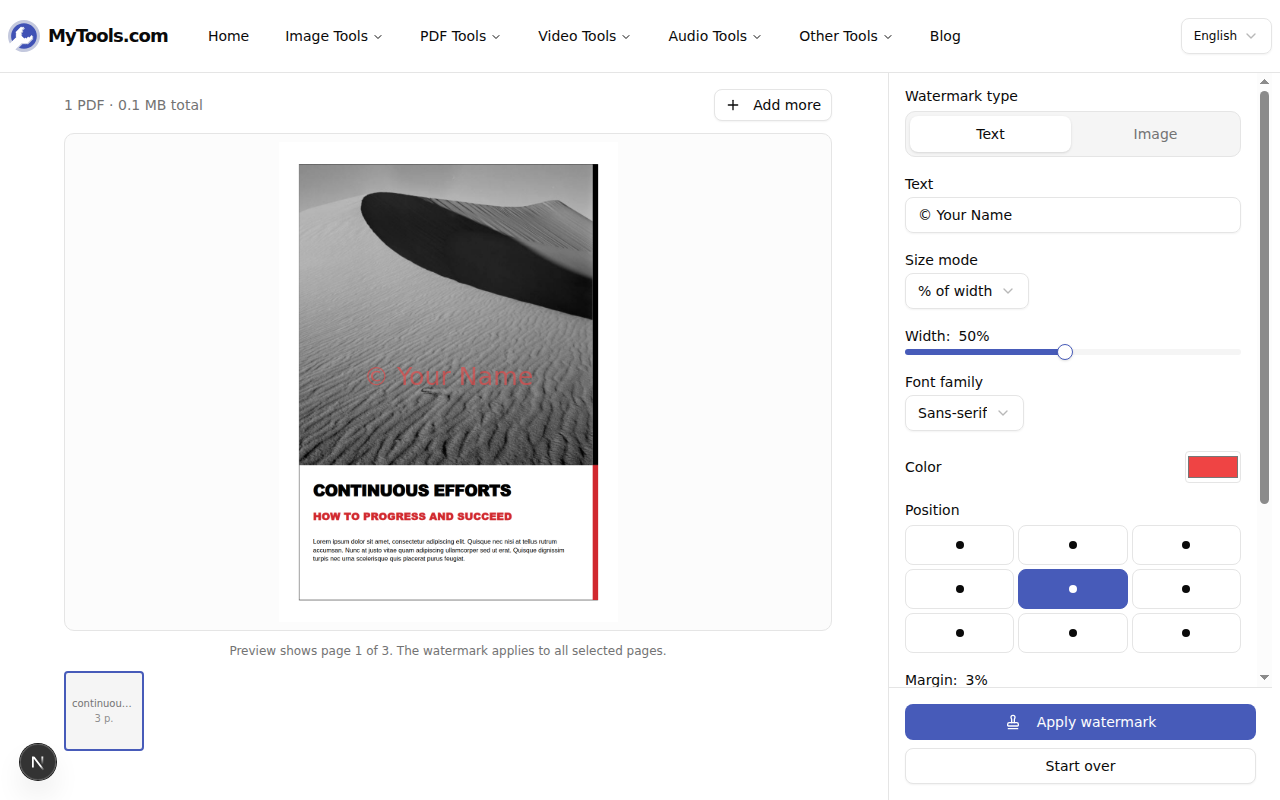
Once the PDF is in, you land on the workspace. The left panel shows a live preview of page 1; the right panel is where you set everything up.
A few choices worth understanding rather than just clicking through:
- Watermark type. Text is the right pick for things like "DRAFT — Not for distribution" or your company name. Image is for a logo — upload a PNG with transparency for a clean result.
- Size mode. Three options. % of width keeps the watermark proportional to each page (handy when your batch mixes A4, Letter, and A5). % of height does the same on the vertical axis. Fixed (pixels) gives you a constant pt value, which only matches across pages of the exact same size.
- Position. Nine anchors, from corners to dead-center. The default is center, which fights least with most page layouts. Combine with Margin if you don't want it touching the edge.
- Opacity. 30 % reads as a confident background mark; 60 % reads as a stamp; 80 %+ starts feeling like a redaction. The right number depends on what's already on the page.
- Rotation. Negative values tilt counter-clockwise, positive clockwise. ±15° is enough to suggest "stamped"; -45° is the classic diagonal "DRAFT" look.
- Tile. Toggle this on to repeat the watermark in a grid across the page. Good for sample/portfolio PDFs you don't want lifted. When tile is on, position and margin are ignored — the pattern fills the whole page.
If you only want to mark some pages, switch Pages to Custom range and set From / To. The range is clamped per file, so a 2–10 range on a 5-page PDF marks pages 2–5.
Step 3: Apply, then download
Click Apply watermark. Each PDF is processed in the browser using pdf-lib — nothing leaves your device. With a single PDF the result is ready in a second or two; with a batch of 10, expect a few seconds.
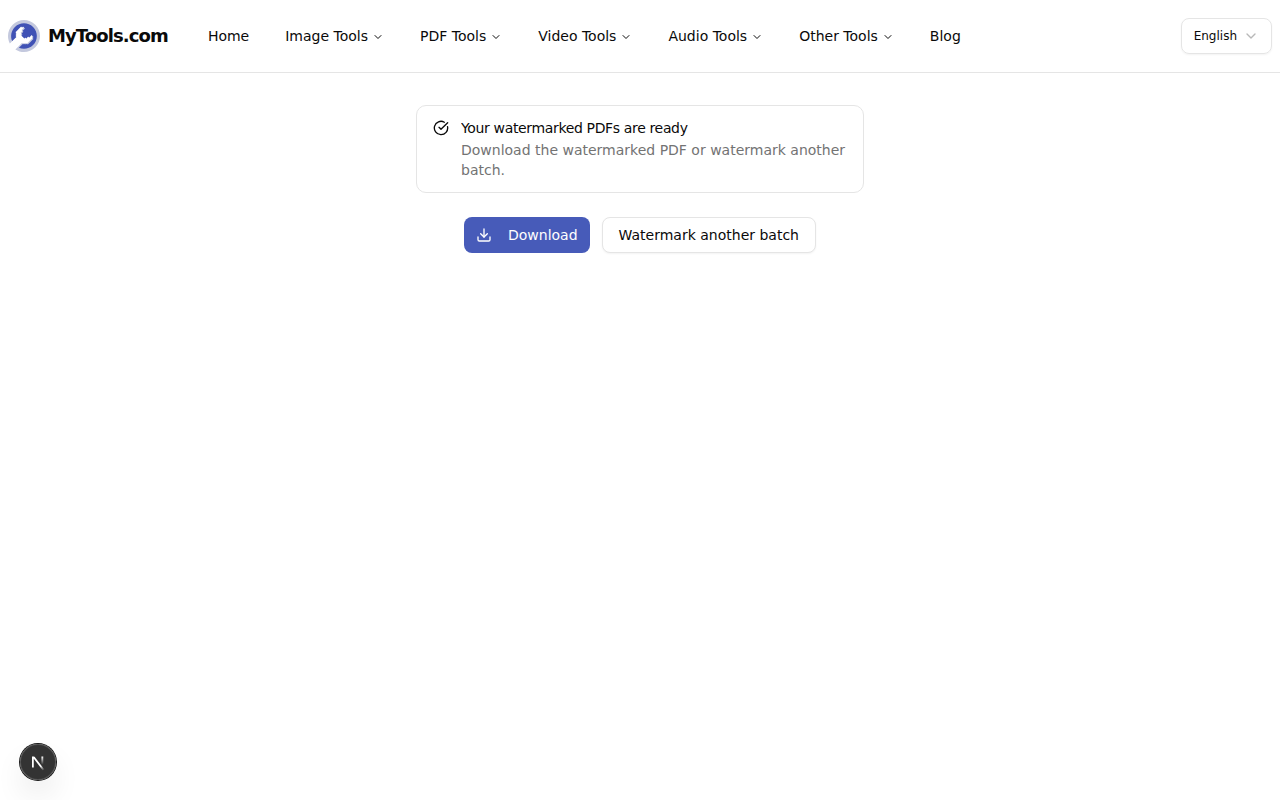
Your originals are untouched — the tool always creates new files named original-watermarked.pdf next to whatever you uploaded.
Picking a watermark that actually works
A watermark exists to do one of three jobs. Knowing which one helps you pick sensible settings:
- Status marker. "DRAFT", "INTERNAL", "CONFIDENTIAL" — wants to be unmissable. Tile mode at 25–30 % opacity, -45° rotation, red or dark grey. Hard to ignore, hard to crop out.
- Brand mark. Your logo on a portfolio sample. Wants to claim authorship without ruining the work. Image watermark, bottom-right anchor, 20 % width, 50 % opacity, no rotation. Visible enough to credit, discreet enough not to dominate.
- Background credit. Author name on every page of a long document, like a thesis or report. Center anchor, large size, low opacity (15–20 %), no rotation. Reads as a soft watermark you forget about while reading.
The defaults in the tool — center, 50 % width, 60 % opacity, no rotation — are tuned for the second case. The first thing to change is opacity, depending on which job you're after.
Tips & troubleshooting
The watermark looks too small (or too big) across mixed page sizes. That's the difference between % of width and Fixed (pixels). If you batch a 200×200 mm A5 leaflet with an A3 poster and use a fixed pixel size, the watermark will look fine on one and absurd on the other. Switch the size mode to % of width and the watermark scales with the page.
My PDF won't load — it says it's encrypted. Password-protected PDFs need to be unlocked before you can edit them. Run the file through the Unlock PDF tool first, then come back here.
The text watermark drops characters. The built-in fonts (Helvetica, Times, Courier — selected by the Font family dropdown) only cover Western Latin. If your watermark contains accented characters outside that range, CJK, or emoji, switch to an image watermark — render the text in any image editor as a transparent PNG and upload it.
The original PDF had filled form fields and they look slightly different now. pdf-lib normalises some form-field appearances on save. If you depend on exact form rendering, watermark a flattened copy instead.
Wrapping up
Watermarking a PDF is the kind of task that takes thirty seconds when the tool exposes the right controls and a frustrating hour when it doesn't. The three knobs that matter most are size mode (so the watermark scales with the page), opacity (so it does the job without overwhelming the content), and tile (for the cases where one stamp isn't enough). Everything else is a refinement.
Need to watermark something now? Try the PDF Watermark tool for free →