
October 22, 2026
How to Extract Pages from a PDF (Keep Only What You Need)
Extract pages from a PDF by clicking thumbnails or typing a range like 2-4, 7. Get one file, one per page, or a new page order. Your PDF stays on your device.
Someone asks for "pages 12 to 18 and the summary on page 31". The PDF you have is 80 pages long. Sending all of it buries what they asked for, and screenshots lose the selectable text. What you need is to extract pages from the PDF into a new file that contains only those eight pages, with their original layout.
This guide covers the tool's four steps. It also explains the three output modes, how to write a page range that won't be rejected, and why the new file is not always smaller in proportion to the pages you removed.
Before You Start
- A PDF up to 50 MB and 500 pages. You can load up to 20 PDFs at once.
- No password on the file. The tool can't read encrypted PDFs. If yours asks for a password when you open it, remove it first with Unlock PDF, using the password you already have.
- The page numbers you want, as the PDF counts them. This is the most common source of mistakes, so it has its own section below.
Extract Pages in Four Steps
Step 1: Open the page extractor
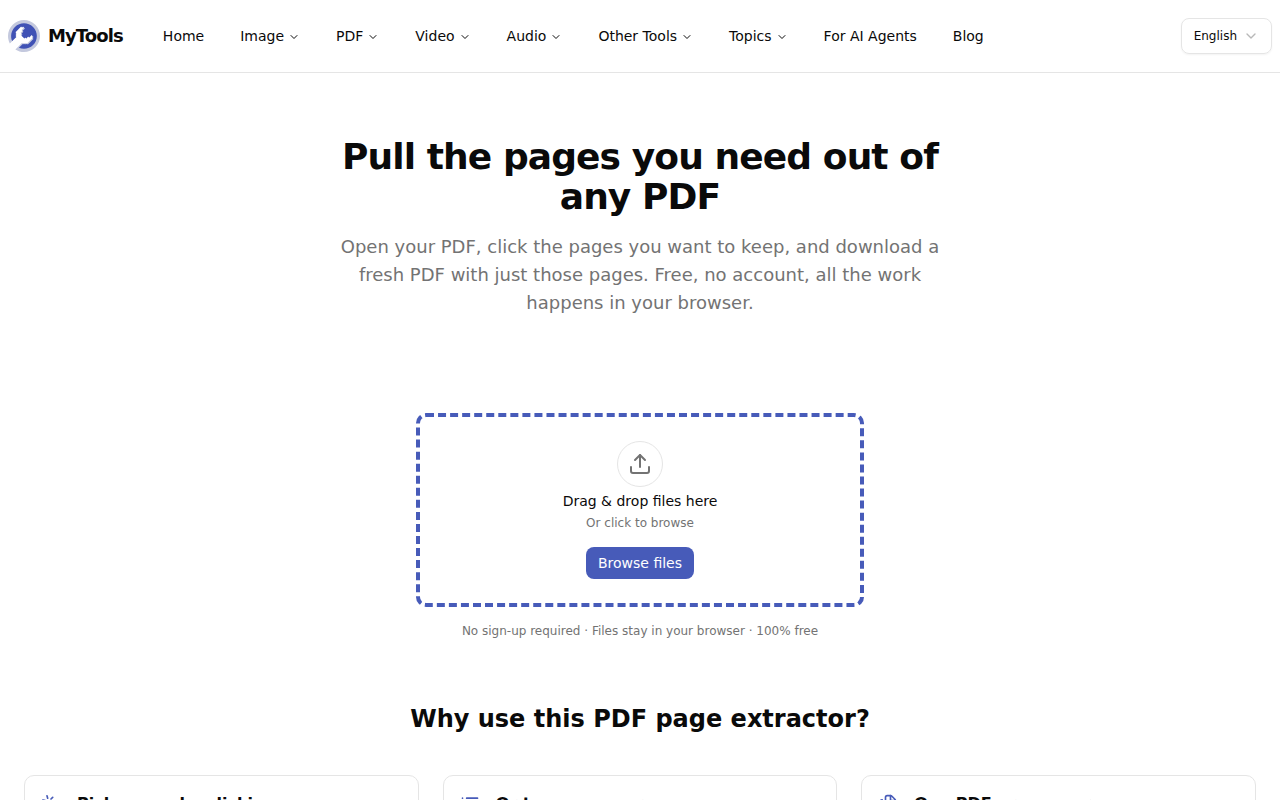
Open Extract PDF Pages. The upload area is the first thing on the page, and there is no sign-up form in front of it.
Step 2: Add your PDF
Drag the file onto the dashed box, or click Browse files. Your browser opens the PDF itself and draws a thumbnail of every page, so the file is never sent to a server. A 300-page document can take a few seconds to show all its thumbnails. You can start selecting pages before the last ones appear.
Step 3: Choose the pages
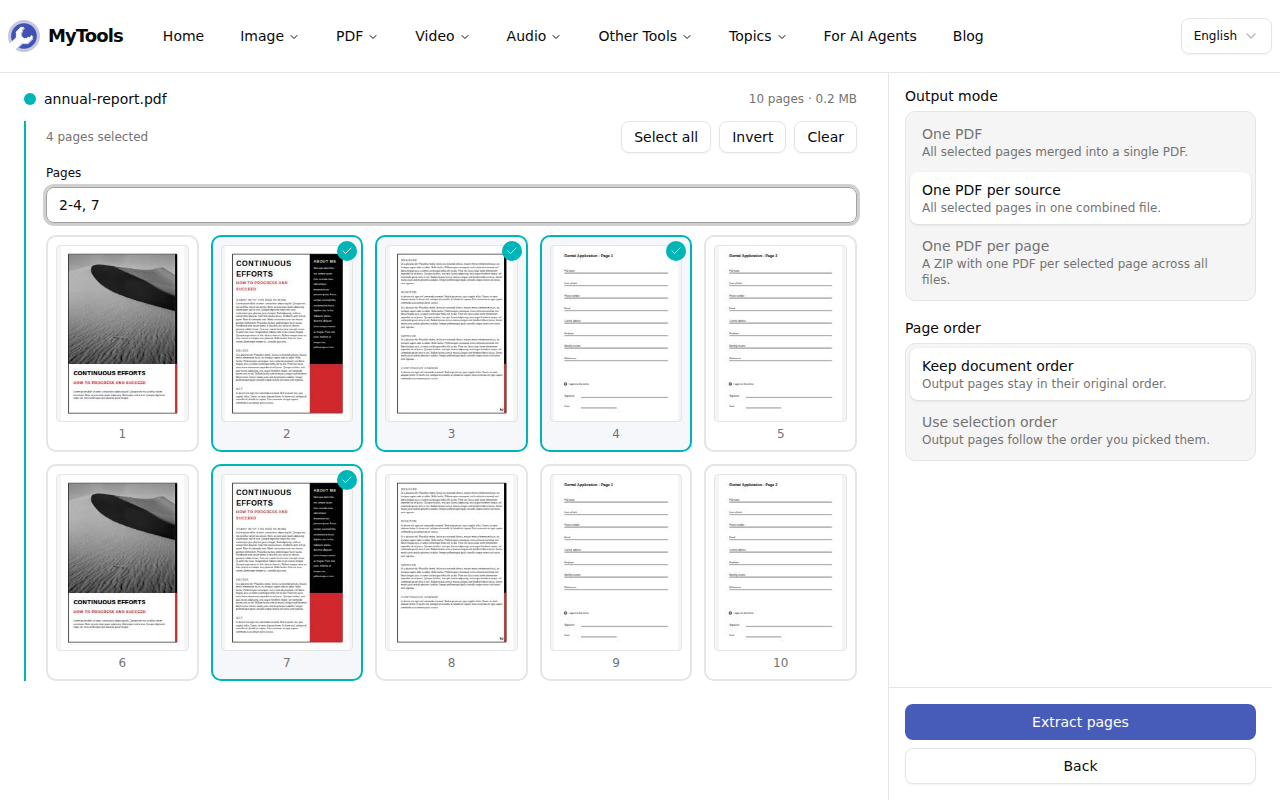
There are two ways to choose pages, and they stay in sync:
- Click thumbnails. Each page you click gets a colored border and a check mark. Click it again to remove it.
- Type in the Pages field. Use commas and hyphens, for example
2-4, 7. The thumbnails update as you type.
The three buttons above the field help with larger selections. Select all fills in 1- up to the last page, Clear empties the field, and Invert selects every page you didn't pick. Invert is the fastest way to remove pages: to drop a cover and two blank pages, select them, click Invert, and the remaining pages are selected.
Step 4: Choose an output and download
In the settings panel, choose how you want the pages delivered, then click Extract pages. When the result is ready, click Download.
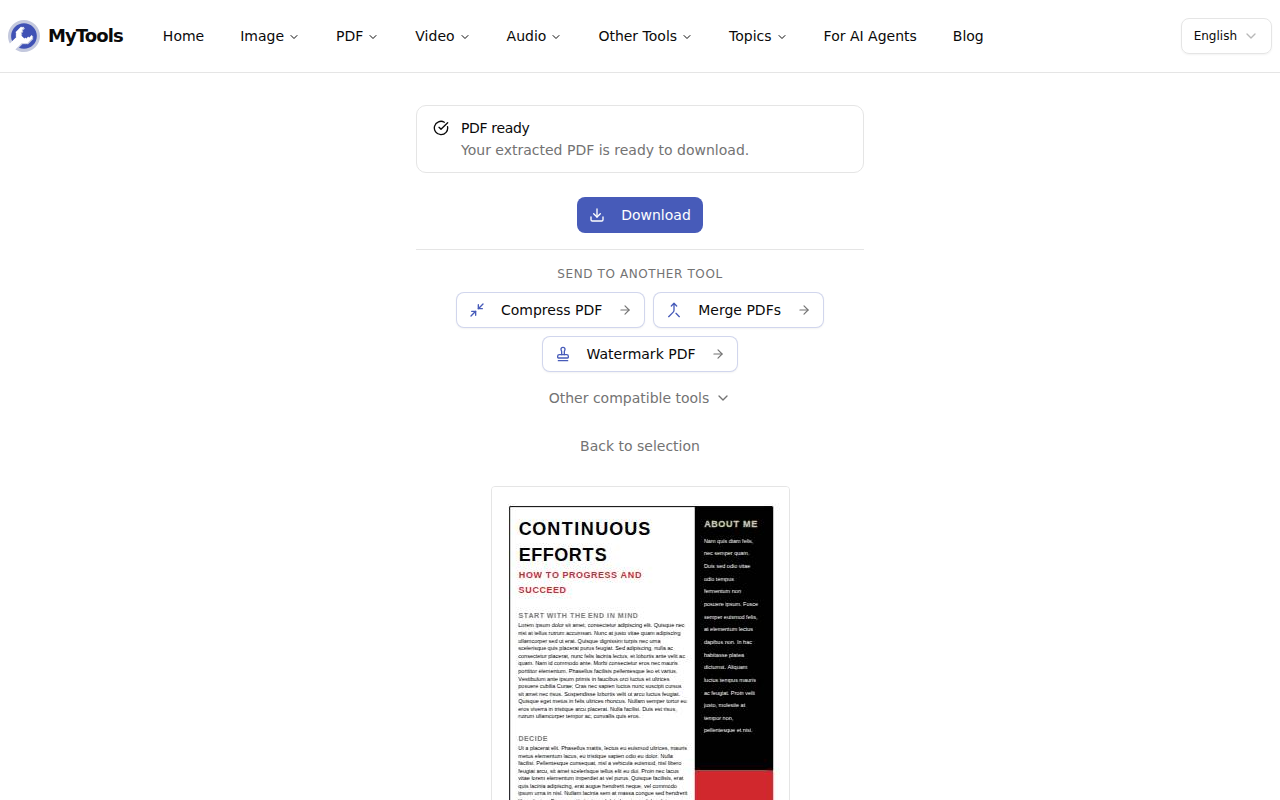
You can also send the result to Compress PDF, Merge PDFs or Watermark PDF without downloading it first. Back to selection returns you to the thumbnails with your selection kept, so you can extract a different set from the same file.
Which Output Mode to Use
| Mode | What you get | Use it when |
|---|---|---|
| One PDF | All selected pages in one file. With several PDFs loaded, their pages are combined in upload order. | You're sending one document to one person. |
| One PDF per source (default) | One file per PDF you loaded, named report-extracted.pdf. Several files come back as a ZIP. |
You're trimming several PDFs separately, each for a different recipient. |
| One PDF per page | A ZIP with one file per page, named report-page-7.pdf. |
Each page goes somewhere different, such as separate invoices, certificates or forms. |
With a single PDF, the first two modes produce the same file.
Page order has two options. Keep document order puts the pages back in their original order, whatever order you clicked them in. Use selection order follows the order you clicked or typed. With selection order, 31, 12-18 puts the summary page first. Each thumbnail then shows a number that tells you where that page will appear. This also lets you reorder a PDF: select every page in the order you want, and the output follows it.
Writing a Range That Works
The field accepts single pages (5), ranges (2-5) and both separated by commas (1-3, 5, 7-9). A few details cause most of the error messages:
- Use the PDF's page numbers, not the numbers printed on the page. A report whose page "1" comes after a cover and a table of contents is page 3 to the tool. Use the number under each thumbnail.
- Write ranges from low to high.
9-7is rejected. If you want those pages in reverse, type9, 8, 7and choose Use selection order. - Each page appears only once. Typing
3, 3gives you one copy of page 3. To repeat a page, extract it twice and combine the files. - The error tells you what's wrong. For example, "Page 45 doesn't exist (this PDF has 40 pages)" means you asked for a page past the end of the file.
Why the File Isn't Always Proportionally Smaller
The tool copies each page as it is: the text stays selectable, the fonts stay embedded and the images are not compressed again. That's why quality doesn't change. It also means the size of the new file depends on which pages you keep, not on how many.
In our test, keeping four pages of a 10-page, 181 KB PDF produced a 52 KB file. That's 40% of the pages but under 30% of the size, because the two pages with a large photo were not in the selection. If you had kept those two pages instead, the file would have been most of the original size. A scanned PDF works the same way: each page is a full image, so keeping 10 of 100 scanned pages gives you roughly 10% of the size. A text PDF that embeds a large font has the opposite effect: each extracted file keeps the whole font, so 20 one-page files can add up to more than the original.
Two other things don't come with the pages. Bookmarks (the outline in a PDF reader's sidebar) belong to the whole document, so the new file has none. Internal links to pages you removed stop working.
When to Use Split PDF Instead
Extracting keeps some pages and ignores the rest. Split PDF divides the whole document into parts. If you want every chapter as its own file, or a 200-page scan cut into 10-page sections, Split PDF does it in one pass. If you want only pages 12–18 and 31 and don't need the other 72, use Extract.
The Short Version
Select pages by clicking or typing a range. Choose one file, one file per PDF or one file per page, and download. The pages are exact copies, so the result looks like the original, without the pages you didn't need.