
May 12, 2026
How to Create a QR Code (PNG or SVG, No Sign-Up)
Make a free QR code for a URL, WiFi network, or vCard in three clicks — pick colors, drop in a logo, and download a print-ready PNG or SVG.
A QR code is doing one job: replacing a string someone would otherwise have to type. A WiFi password on a café wall, a long Drive link on a slide, a contact card you'd rather not read aloud at a conference. The fastest path to a clean, scannable code — without a sign-up, a watermark, or a "trial expired" banner six weeks later — is the MyTools QR code generator. It runs in your browser, supports seven content types out of the box, and exports both a print-ready SVG and PNG sizes up to 2048 px. Below: the workflow, plus what to actually put in each tab and how to keep the code scannable when you start customizing it.
Pick the right content type
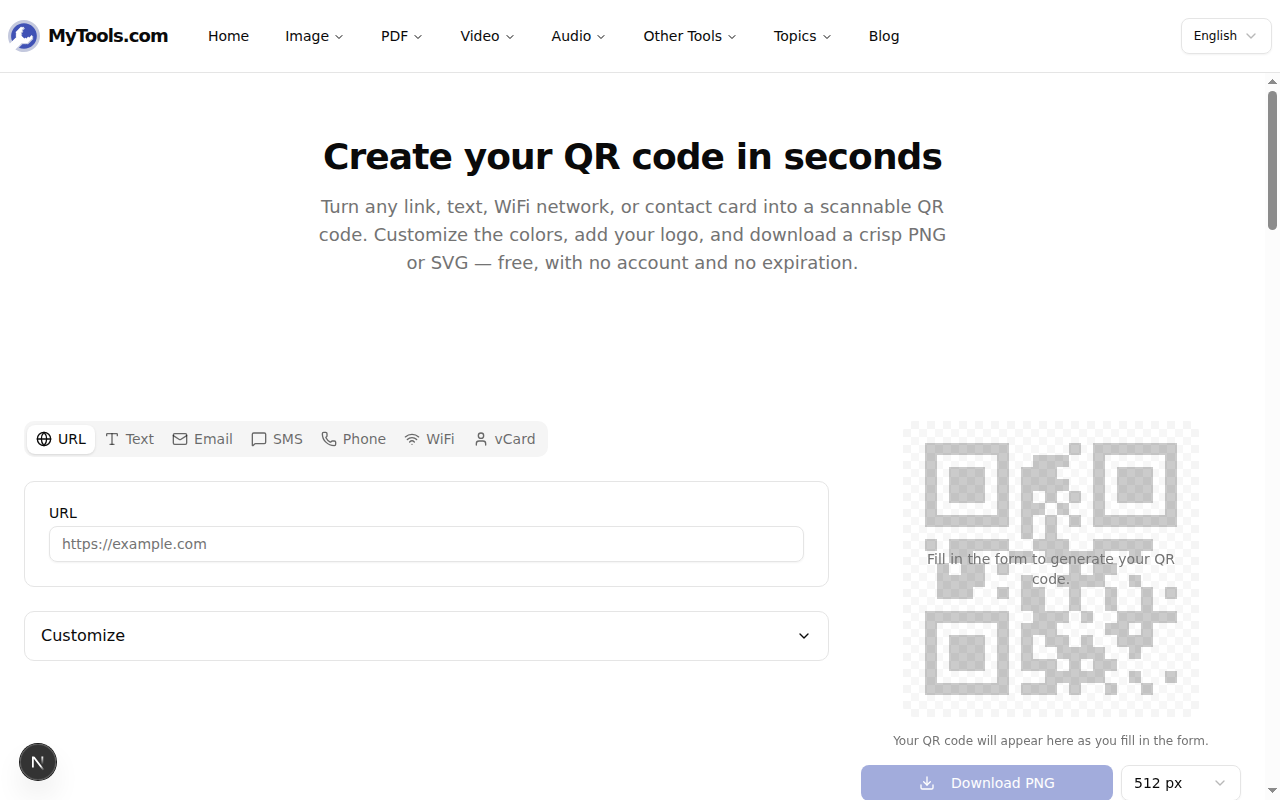
The tool has seven tabs across the top, and the one you choose decides how a scanning phone reacts to the code — not just what it shows. That distinction matters: a phone that scans a "URL" code prompts to open a browser; the same string in a "Text" code just dumps the text on screen.
- URL — a single web link. The default for anything you'd share by copy-paste. Phones auto-prompt "Open in Safari/Chrome?"
- Text — plain text with no action. Useful for ticket numbers, coupon codes, or instructions that aren't a link.
- Email — a
mailto:with optional subject and body pre-filled. Common on flyers ("Email us to RSVP"). - SMS — opens the messaging app with the recipient number and an optional draft. Used for short codes ("Text JOIN to…").
- Phone — taps to call. The "Call us" button on a printed sign.
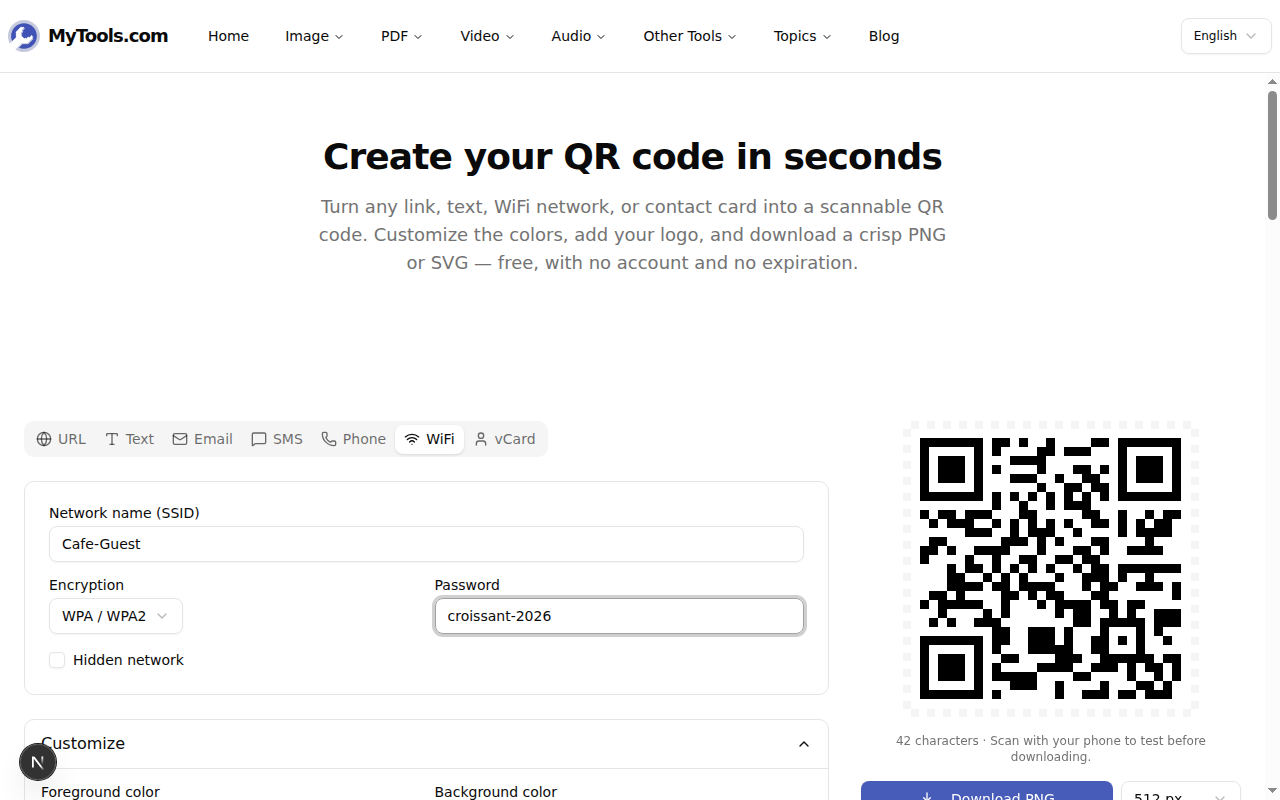
- WiFi — SSID, encryption type, and password encoded the way iOS and Android both expect. Scanning prompts "Join SSID?" with no typing.
- vCard — a full contact card (name, title, company, email, website…). Scanning offers "Add to Contacts."
The error-correction level and the encoded payload size are the two real constraints. A vCard with five fields holds more data than a 30-character URL, which means the code's grid gets denser and scans worse from far away. If the code is going on a sign that will be read from across a room, prefer a short URL (or a link shortener) over a long raw one.
How to make a QR code — step by step
Step 1: Open the generator and pick a tab
Open MyTools QR Code Generator. There's no upload step and no "create project" gate — you land on a working form with the URL tab selected by default. Switch tabs along the top to match what you actually want to encode.
Step 2: Fill in the form, then customize
Type into the fields and the QR code on the right updates as you go. Open the Customize panel underneath to change the foreground/background colors, set a margin, pick an error-correction level, or upload a logo for the center of the code.
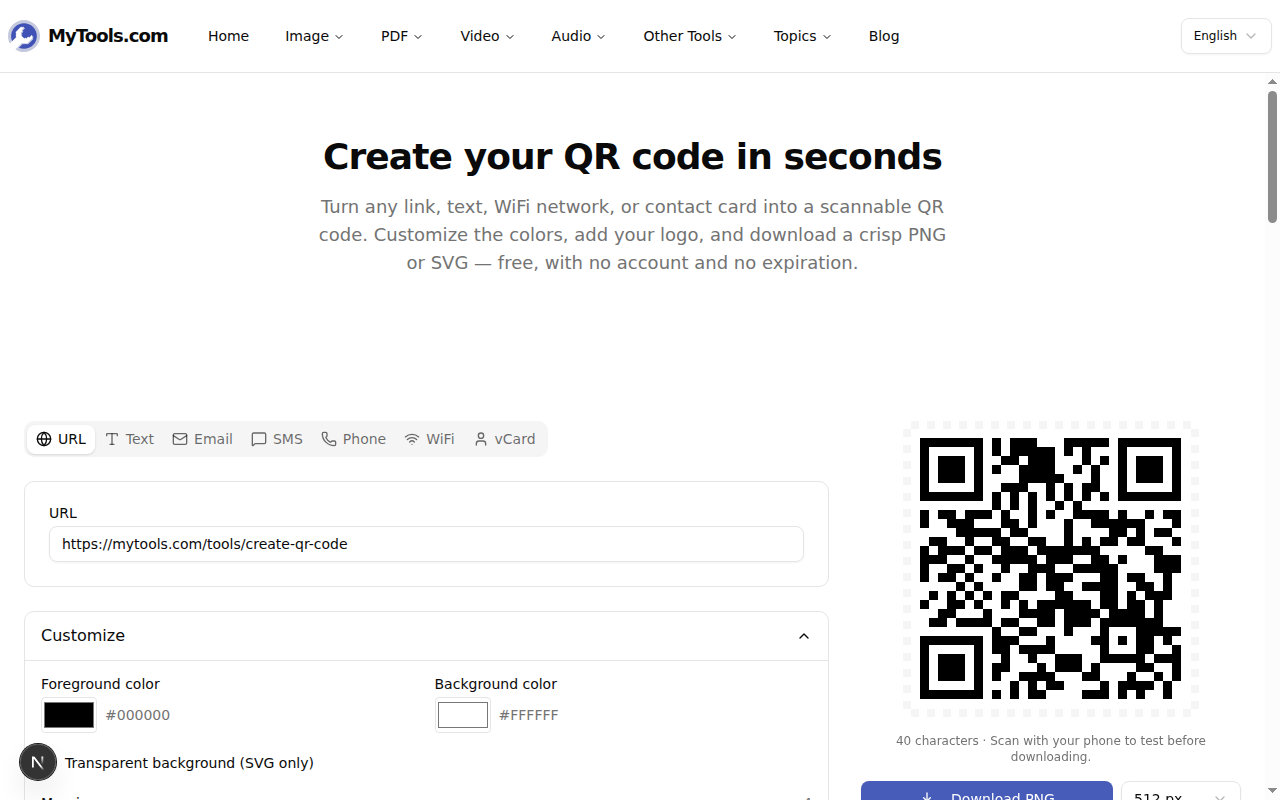
A note on the logo: when you add one, the generator automatically bumps the error-correction level to H (30%) so the code still scans even though up to 30% of its modules are now hidden behind your image. You can override this manually if you want the densest possible code, but H is the right default for branded codes.
Step 3: Download as PNG or SVG
The right-hand panel has two download buttons. PNG ships with a size dropdown (256, 512, 1024, 2048 px). SVG is always vector, scales to any size, and respects the "transparent background" toggle in the customize panel. Filenames are auto-generated as qrcode-{type}-{timestamp}, so a folder of WiFi codes from the same evening sorts cleanly.
PNG or SVG — and what size?
The two formats aren't interchangeable, and the size dropdown matters more than people think.
- 256 px PNG — chat messages, an email signature, embedded in a Notion page. Anything that lives only on a screen.
- 512 px PNG — the safe default for a slide deck or a small printed flyer. Most projectors won't show more detail than this anyway.
- 1024 px PNG — business cards, A4 printed posters, anything that gets photographed. The most common size people end up exporting.
- 2048 px PNG — billboards, conference banners, anything where someone might scan from three metres away.
- SVG — when you don't know yet how big the final code will be, or you're handing the file to a designer. The vector scales infinitely without going fuzzy, and the file is a fraction of the PNG sizes at 1024+ px.
If you only ever export at 2048 px to be safe, you're paying for it: a 2048 px QR with a logo ends up around 80 KB versus 4 KB for the equivalent SVG. Print workflows should default to SVG.
Make sure it actually scans
Three things break a QR code more often than anything else, and all three are avoidable:
Low contrast. A pale grey foreground on a white background looks elegant in a mockup and fails to scan in dim light. Keep at least 60% contrast between foreground and background. Inverted codes (light foreground on dark) work too, but some older phones still refuse to scan them — test before printing 500 copies.
Too little margin. The white "quiet zone" around a QR code isn't decorative; scanners use it to find the code's edges. The margin slider defaults to 4 modules wide, which is the spec minimum. Don't drop it below that.
A logo that's too big. The error-correction level can absorb roughly 30% of the code's surface — but that's 30% by area, not by diameter. A logo that visually takes up "half the code" easily covers 40% of the modules and tips the code into unscannable territory. Scan with two different phones before you commit to a print run.
If you also need to compress the resulting PNG before embedding it somewhere with a tight size budget, the image compressor is the next stop.
Ready to create one?
Three clicks, one download, no account: pick a content type, type your data, save the file. Open the QR Code Generator →