
July 30, 2026
How to Trim a Video Without Losing Quality
Trim a video in any browser: drag the timeline or type exact timestamps, then pick Fast for an untouched copy or Precise for a frame-accurate cut. Free.
Almost every recording has a beginning nobody needs. The five seconds of the camera finding its footing. The minute of shuffling before anyone speaks. The twelve minutes of build-up before the thing you actually filmed. To trim a video is to keep one continuous stretch of it and throw the rest away — and unlike most edits, it doesn't have to touch a single pixel of what you keep. Below is how to do it with the MyTools video trimmer, followed by the one setting that decides whether your cut lands exactly where you asked or your quality stays untouched. You rarely get both.
Trimming a clip, start to finish
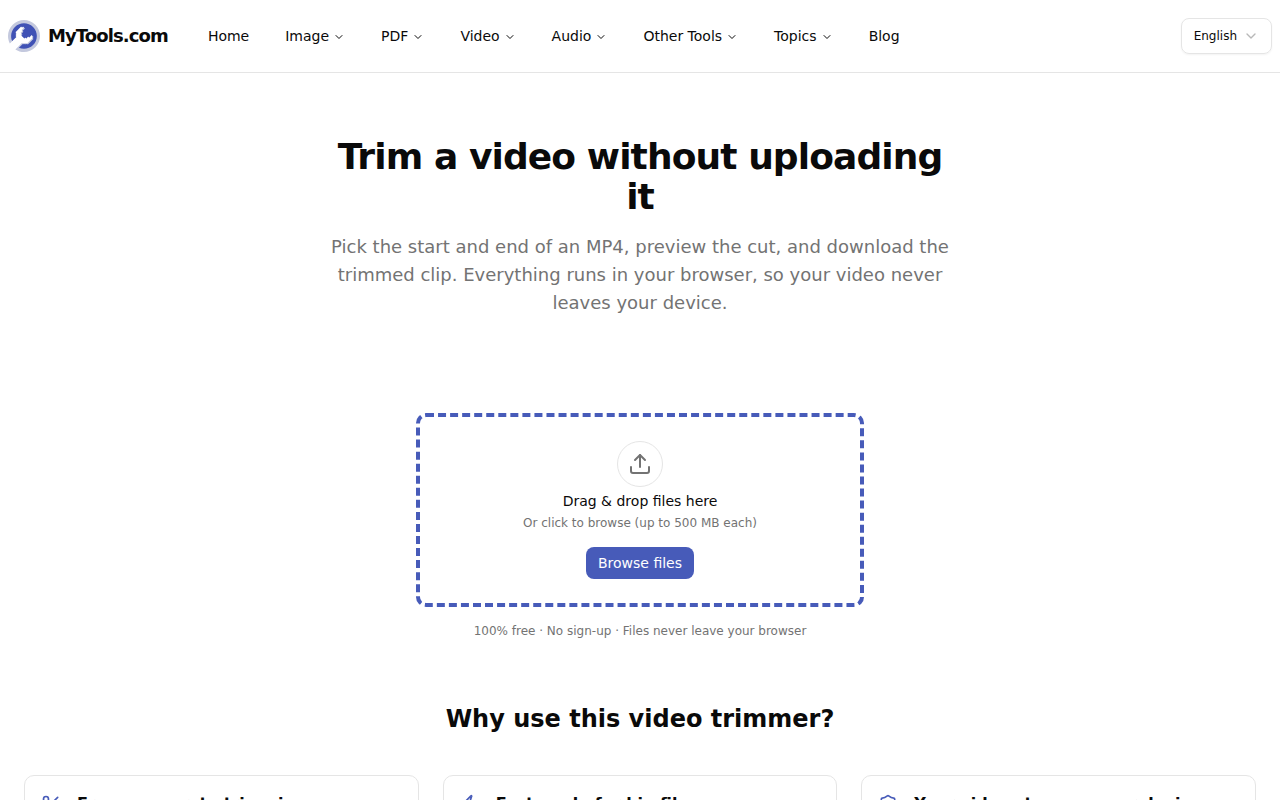
1. Drop the video in
The trimmer opens on a drop zone that takes one file at a time, up to 500 MB. MP4 is the native format here; MOV, WebM and MKV load too, as long as your browser can play them back.
2. Mark the start and the end
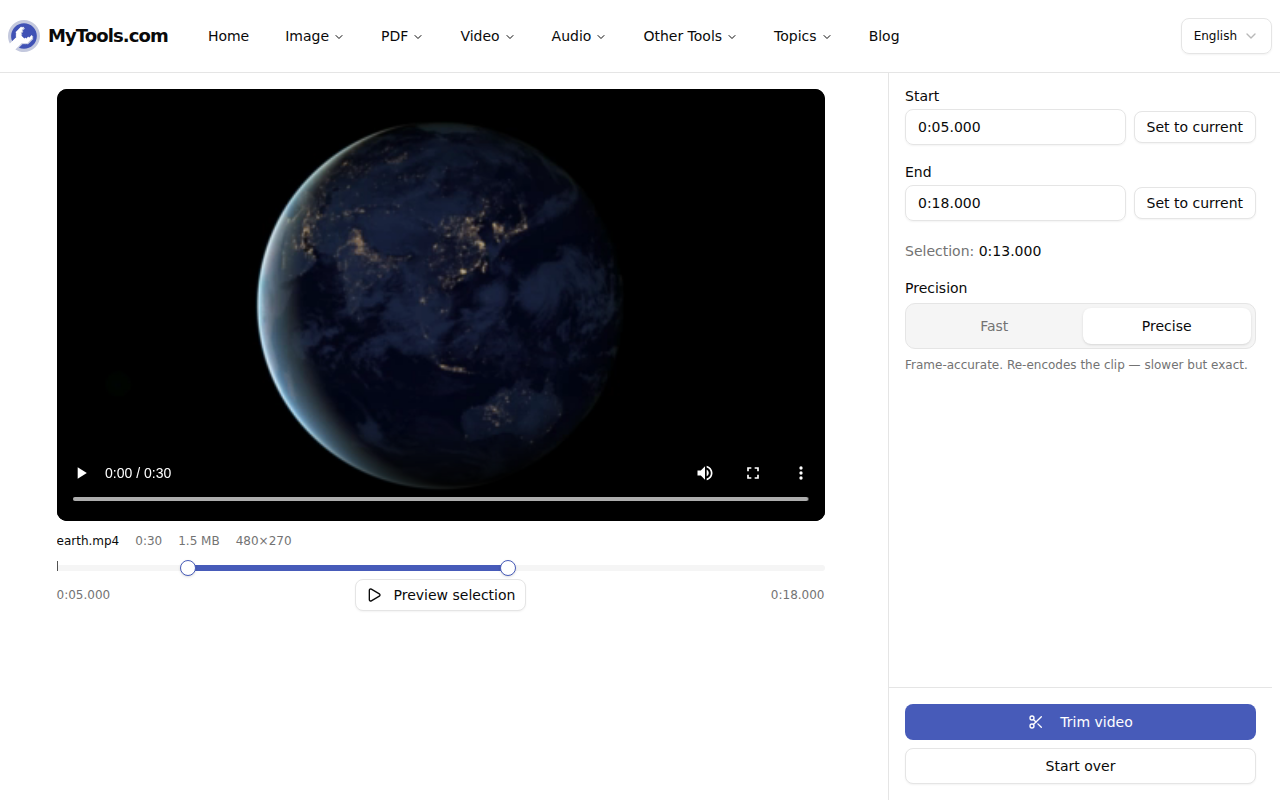
The editor gives you the player, a two-handled timeline beneath it, and a settings column on the right. Three ways to set your range, and you can mix them:
- Drag the handles. The left one is your start, the right one your end. The readouts under the timeline update to the millisecond as you move.
- Type the timestamps. The Start and End fields accept
1:24.500,0:07,1:02:30, or just95for ninety-five seconds. Press Enter to commit. - Play and mark. Scrub the player to the exact frame you want, then hit Set to current next to Start or End. The handle jumps to that timecode.
Preview selection plays back only what you're keeping and stops dead at your end point — the fastest way to catch a cut that clips the first word off a sentence. The thin vertical line crossing the timeline is the playhead, so you can see where playback sits relative to your range.
3. Pick a precision mode, then cut
Under Precision, choose Fast or Precise — the next section is entirely about that choice — and click Trim video. The first run spends a few seconds pulling in the video engine that does the work on your machine; after that it goes straight to processing.
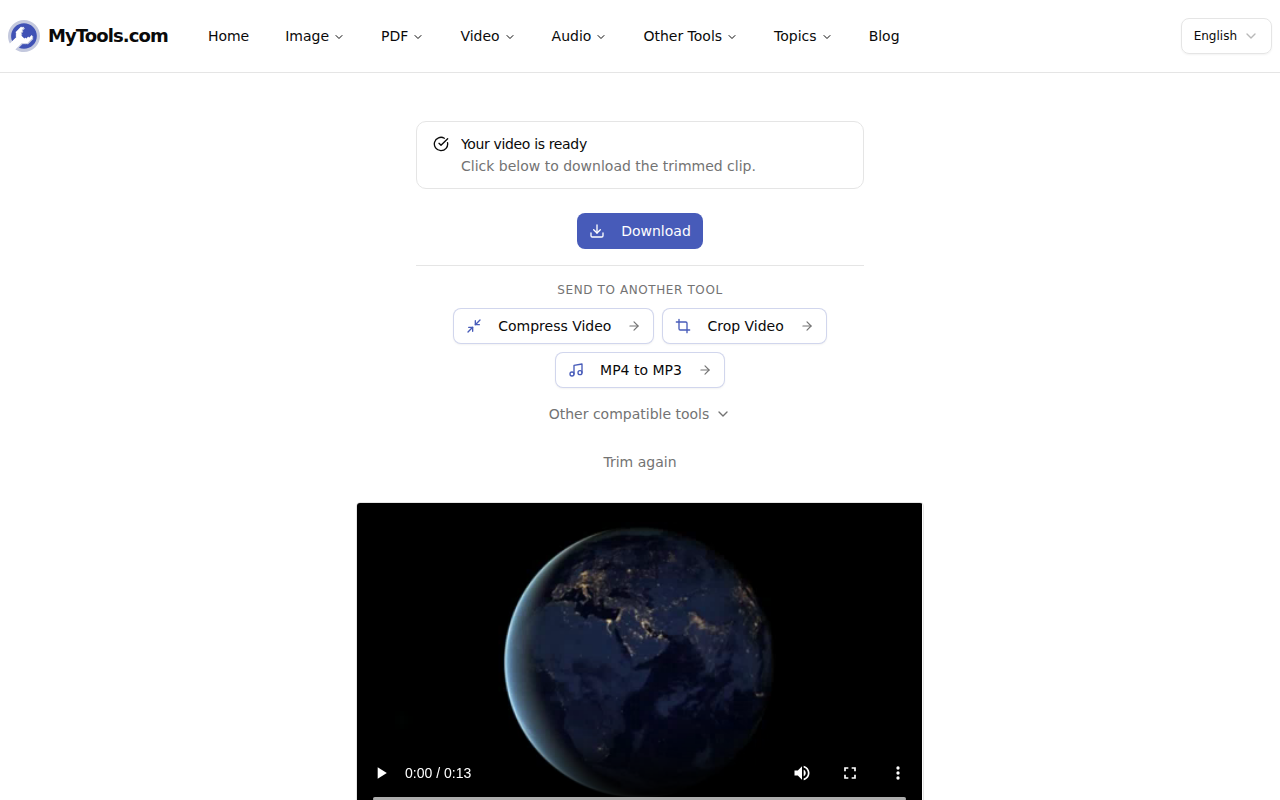
4. Download
The result arrives as yourfile-trimmed.mp4, previewed at its new length. No logo in the corner, no outro card, no tag in the metadata.
Fast or Precise: the setting that decides everything
Fast copies the existing video stream across without re-encoding it. The result is byte-for-byte identical to the source, and it finishes in roughly the time it takes to read the file.
The catch is keyframes. A compressed video only stores complete frames every so often — typically one every one to four seconds — and each frame in between is stored as a description of how it differs from the last complete one. A stream copy has to begin at a complete frame, so Fast rounds your start point back to the nearest one. Ask for 1:24.500 and you may get 1:23.000.
Precise re-encodes your selection as H.264 video with AAC audio, which lets the cut begin on any frame you name. That costs time — budget roughly the playback length of the part you're keeping, on typical hardware — and it produces a fresh encode rather than a copy. At the quality it uses, that's indistinguishable to the eye; it just isn't the same bytes.
Which to use:
- Long recording, dead air at both ends — Fast. A second of drift on a 40-minute lecture is invisible.
- The cut has to land on a specific word, beat, or touch — Precise.
- The clip you're keeping is under ten seconds — Precise. A two-second keyframe drift is a fifth of a ten-second clip.
Getting the range right the first time
Trimming is the cheapest way to shrink a file. Bitrate stays constant, so file size tracks duration almost linearly: a 3-minute 1080p clip weighing 90 MB comes out near 10 MB when you keep 20 seconds of it. If something is over an upload limit and most of it is filler, cut before you compress — you're removing time instead of degrading the picture.
Leave half a second of air. Cuts that land on the exact syllable sound clipped. Set your start a beat before the first word and your end a beat after the last.
One continuous range only. The trimmer keeps a single stretch, so if the part you want to remove sits in the middle, run it twice — once for the section before, once for the section after — and stitch the two results with the video merger.
The button stays greyed out for a reason. If your end is at or before your start, or your selection is still the entire video, there's nothing to trim, and the sidebar says which of the two it is.
When it doesn't cooperate
The file is too big, or the tab runs out of memory. The ceiling is 500 MB, and phones hit their real limit well below that. Fast mode is the one to reach for here — it never decodes the video, so it survives files that make Precise mode fall over. If you're still stuck, shrink the source first with the video compressor.
The cut landed a second early. That's Fast mode finding a keyframe. Click Trim again on the result screen to go straight back to the editor with the same file loaded — no re-upload — set your range again, and switch to Precise.
A MOV went in and an MP4 came out. That's expected: the output is always MP4, which is the format that plays everywhere without argument.
Trimming is the right tool when what you want is one unbroken piece of a longer recording. It stops being the right tool the moment you need several clips joined, a transition between them, or a soundtrack laid over the top — that's editor territory. For the common case, which is most of the time: