
28 juin 2026
How to Convert Word to PDF (Without Breaking the Layout)
Need to convert a Word document to PDF? Drop your .docx, pick A4 or US Letter, and download a clean, locked PDF — no install, no sign-up, fully private.
The job posting says "send your resume as a PDF." The client asked for "one PDF, not a Word file." The grant portal rejects anything that isn't .pdf. You wrote the thing in Word, it looks exactly right on your screen, and now you need it in a format that won't reflow, won't show tracked changes, and won't let the recipient accidentally edit a line. This guide walks through how to convert Word to PDF straight from the browser — including the two settings (page size and combining) that quietly decide whether the result looks professional or slightly off.
Why hand someone a PDF instead of the .docx?
A Word file is a living document. Open it on a different machine and the fonts may substitute, the margins may shift, and a paragraph that fit neatly on page one can spill onto page two. Worse, whoever opens it can change a number, delete a clause, or see the comment you forgot to clear. A PDF freezes all of that: the layout is baked in, the fonts travel inside the file, and what you exported is exactly what lands on their screen — or their printer. For anything you're sending rather than collaborating on — resumes, invoices, signed agreements, handouts — PDF is the format that behaves.
Convert a Word document to PDF in three steps
Step 1: Open the converter
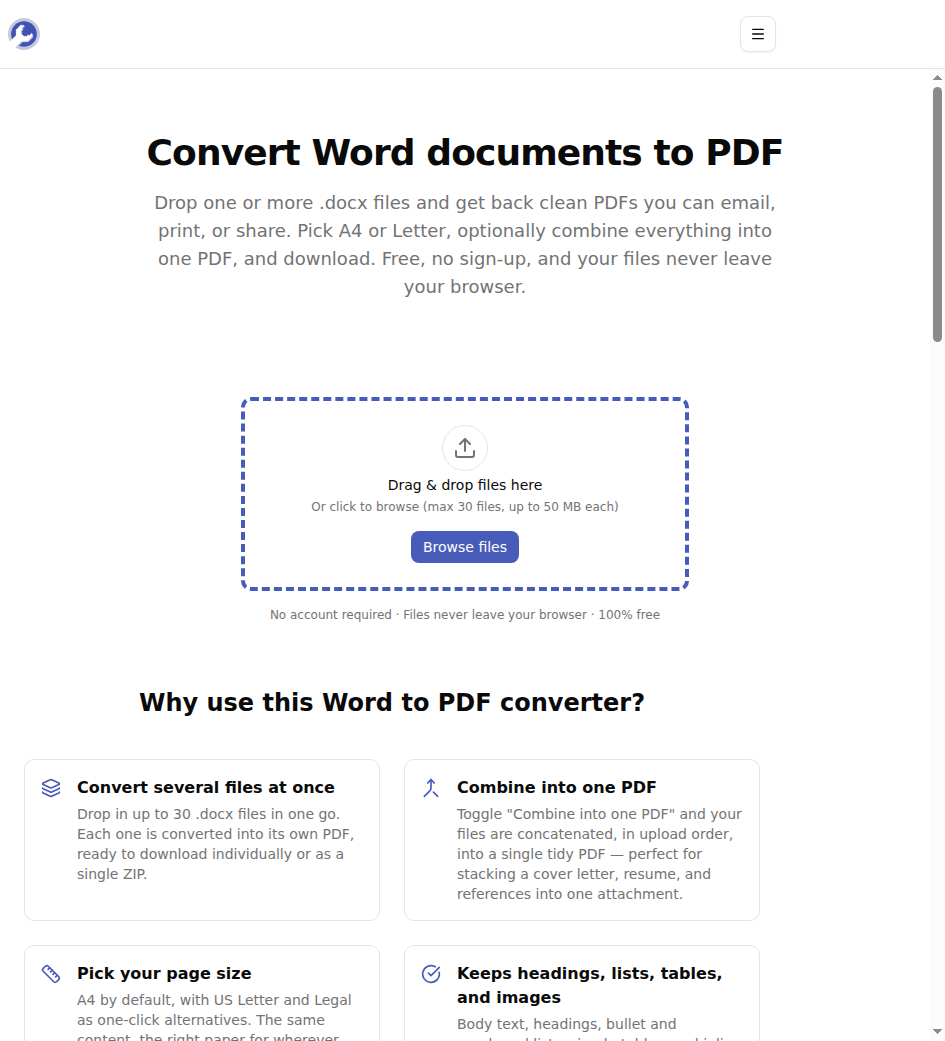
Pull up the MyTools Word to PDF converter. There's no login screen, no trial banner, and no email field — the upload zone is the first thing on the page.
Step 2: Drop your .docx and choose your settings
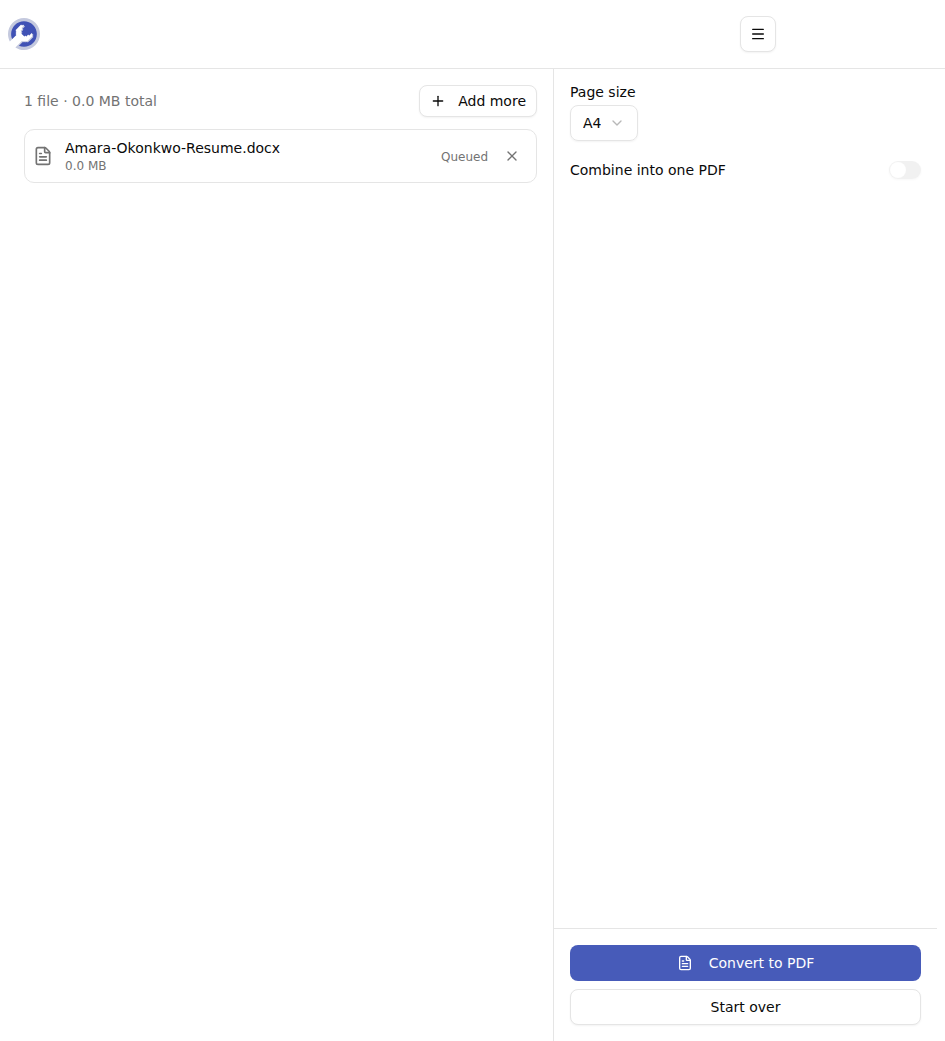
Drag your .docx onto the page, or click Browse files. You can add up to 30 documents at once. Each one shows up in a list, and a settings panel appears with two choices that matter:
- Page size — A4 by default, with US Letter and Legal one click away.
- Combine into one PDF — off by default; flip it on to merge several Word files into a single PDF, in the order you arrange them.
Step 3: Convert and download
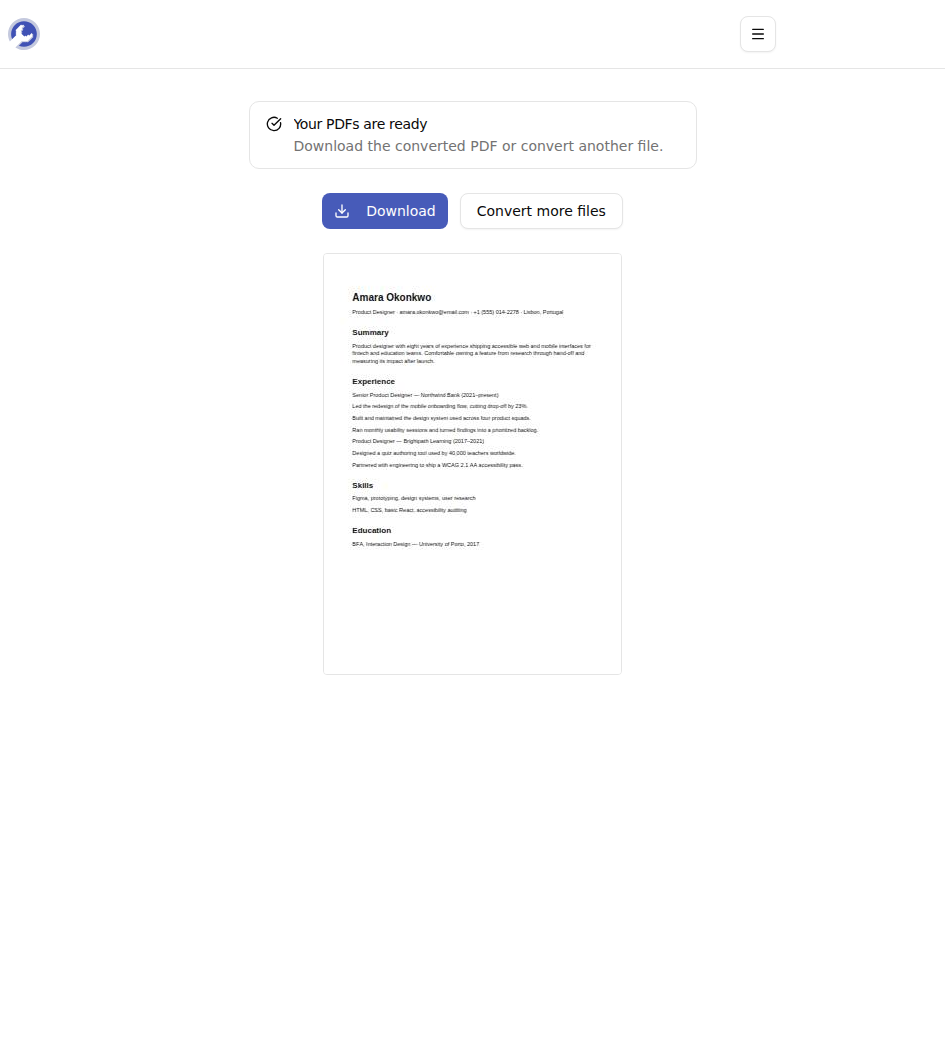
Click Convert to PDF. Conversion runs on your own device — nothing is uploaded — so even a fat document is done in a few seconds. Grab the finished PDF from the result screen, or, if you converted a batch, pull them all down as a single ZIP.
Pick the right page size before you click
This is the setting people skip, then wonder why their printout has odd margins. A4 (210 × 297 mm) is the standard everywhere except North America. US Letter (8.5 × 11 in) is slightly wider and shorter, and it's what a recruiter in New York or a printer in Toronto expects. Legal (8.5 × 14 in) is the long sheet for contracts and certain official forms.
A practical rule: match the page size to where the document is going, not where you are. Sending a resume to a US employer? Choose Letter even if your Word default is A4 — otherwise the PDF prints with an awkward strip of white at the bottom and a clipped right margin.
Stack several documents into one attachment
The Combine toggle is the feature worth remembering. Say you're applying for a job and the posting wants "a single PDF with your cover letter, resume, and references." Instead of three attachments — or pasting documents together by hand — drop all three .docx files in, drag them into the order you want (cover letter, resume, references), turn on Combine into one PDF, and convert. You get one tidy file in the right sequence. The same trick turns three separate contract files into one envelope-ready document.
Tips & Troubleshooting
"It won't accept my file." The converter takes .docx — the modern format from Word 2007 onward, plus Google Docs and LibreOffice exports. The older .doc (the binary format with no x) isn't supported. Open it in Word or Google Docs and re-save as .docx first.
"The PDF looks slightly different from Word." Body text, headings, bullet and numbered lists, simple tables, and inline images all carry over cleanly. Very elaborate layouts — floating text boxes, multi-column spreads, embedded charts, or an unusual font you installed yourself — can render a touch differently. Open the PDF once before you send it; it takes ten seconds and saves an awkward re-send.
"I need to shrink it afterward." A PDF stuffed with high-resolution photos can get heavy. Run the output through the PDF compressor to trim the size before emailing.
Wrapping up
Converting Word to PDF is really about handing someone a file that looks the same on every screen and can't be edited out from under you. Drop your .docx, match the page size to the destination, optionally combine a few files into one, and download — all without an account and without your document ever leaving your browser.
Ready to lock in your layout? Try the Word to PDF converter for free →